SwitchMyTool

Practical take
ClickUp looks cheap until the integration map gets real.
- ClickUp is easiest to justify when one workspace replaces several tools your team already pays for and actively uses.
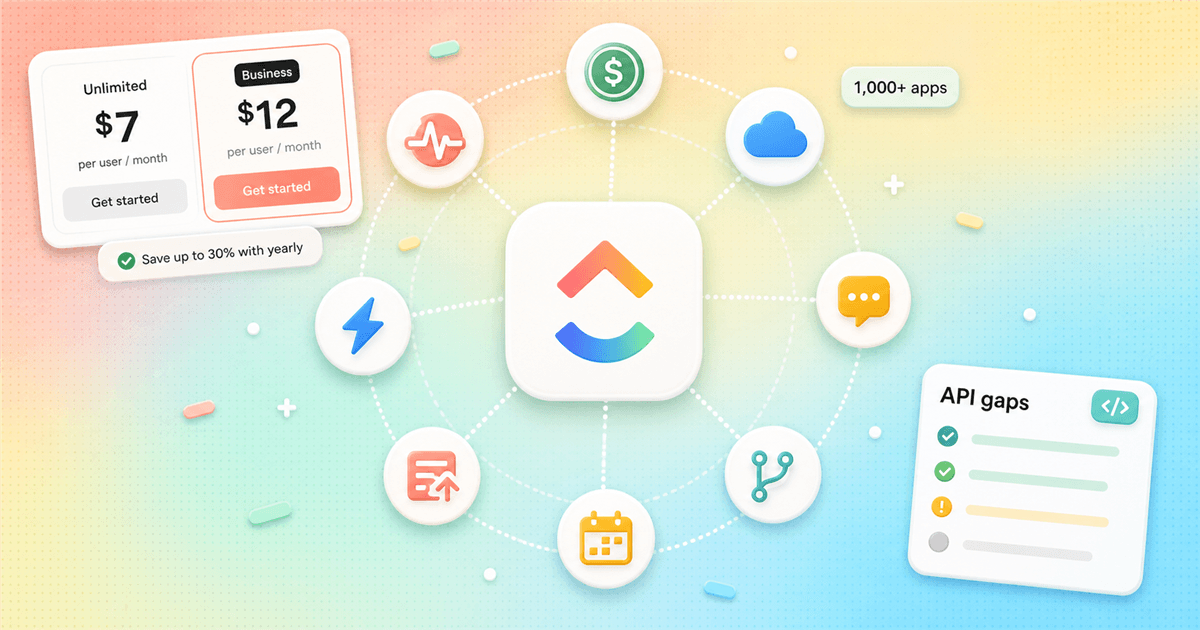
- The official ClickUp pricing page shows Free Forever, Unlimited at $7 per user/month billed yearly, Business at $12 per user/month billed yearly, and Enterprise by custom demo.
- Unlimited includes unlimited integrations, but Business is where Webhooks & Automation Integrations and 5K automations per month appear on the official pricing page.
- The official ClickUp integrations page says teams can connect over 1,000+ tools, but the fit test is whether your exact accounting, monitoring, storage, and development workflow works without glue work.
- The Reddit screenshot supplied for this article is a reminder that integration complaints often come from the edges: Xero, Zabbix, HighLevel, file backup from forms, and API details that block custom tooling.
The actual decision
ClickUp pricing only matters after you know what ClickUp will replace.
ClickUp is one of those products that can look like a bargain and a trap in the same afternoon. The per-user number on the pricing page is simple. The real buying decision is less simple: which tools go away, which workflows move into ClickUp, and which integrations need custom work before the team can trust the system.
That is why a plain clickup pricing comparison is not enough. A team that only wants a task board may be fine on Free Forever or Unlimited. A team that wants ClickUp to connect intake forms, engineering work, customer support, billing handoffs, file storage, dashboards, and automations has a different problem. That team is buying an operating surface, not a task app.
The same is true for clickup integrations. The official integrations page says ClickUp connects over 1,000+ tools. Useful, yes. But the number does not answer whether your exact flow works. Does the form attachment land in the right cloud folder? Does the accounting tool sync the right object? Can your developer push PR links into the task sidebar? Can the API do what the web UI does? Those are the questions that keep the purchase honest.
I would evaluate ClickUp like a workflow lease. The monthly bill is only the rent. Setup, admin ownership, connector testing, reporting cleanup, and exit risk are the utilities. Ignore those and ClickUp can become one more place your team copies data into because the integration was almost right.
Official pricing
The public plan ladder is simple. The feature breakpoints are where teams get surprised.
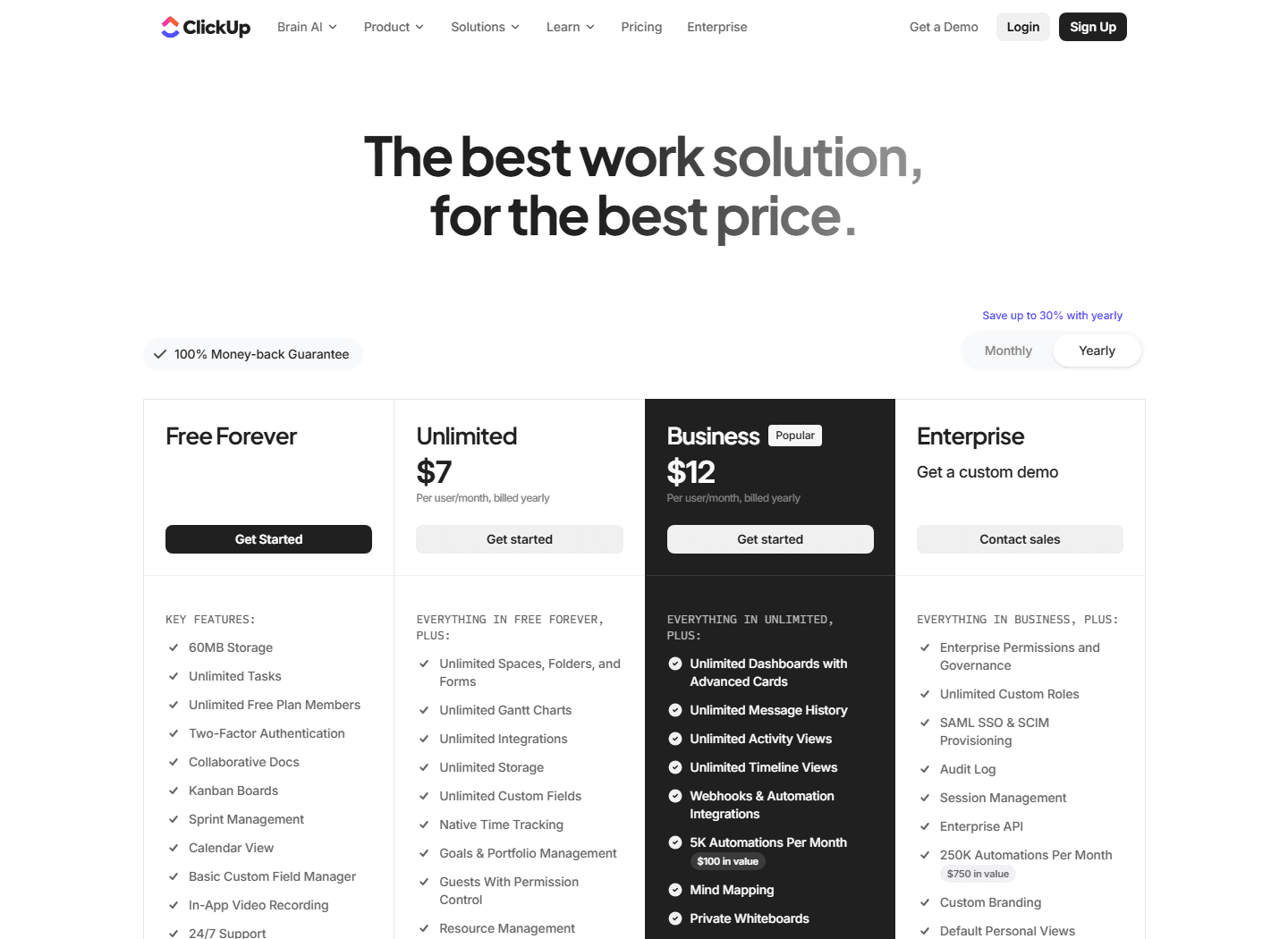
The official ClickUp pricing page, checked for this guide, lists Free Forever, Unlimited at $7 per user/month billed yearly, Business at $12 per user/month billed yearly, and Enterprise by custom demo. The page also says yearly billing can save up to 30%.
For a small team, Unlimited is the tempting plan. It adds unlimited spaces, folders, forms, Gantt charts, integrations, storage, custom fields, native time tracking, goals, portfolio management, guests with permission control, resource management, ClickUp Chat, and Email in ClickUp. That is a lot for $7 per user/month billed yearly.
Business is where the product starts looking like a real operations hub. The official page lists unlimited dashboards with advanced cards, unlimited message history, unlimited activity views, unlimited timeline views, Webhooks & Automation Integrations, 5K automations per month, mind mapping, private whiteboards, custom exporting, sprint points and reporting, portfolio workload management, Google SSO, SMS 2FA, and unlimited proofing.
That upgrade decision should not be emotional. If Business features replace workarounds, pay for them. If they only sound nice in a plan table, stay lower until a real workflow asks for them. A plan upgrade without a workflow trigger is usually just a small subscription tax that gets forgotten.
| Plan | Official price | Best fit | Watch out for |
|---|---|---|---|
| Free Forever | $0 listed on ClickUp pricing | Personal use, small trials, and teams testing whether tasks, Docs, boards, calendar, and one form are enough. | 60MB storage is the obvious ceiling. Treat this as a trial workspace, not the long-term operating system for a busy team. |
| Unlimited | $7 per user/month billed yearly | Small teams that want unlimited storage, unlimited spaces, unlimited integrations, Gantt charts, custom fields, time tracking, goals, portfolios, Chat, and Email in ClickUp. | This is the first serious plan for many teams, but it does not include the Business tier's Webhooks & Automation Integrations callout. |
| Business | $12 per user/month billed yearly | Teams that need advanced dashboards, unlimited message history, activity and timeline views, webhooks, automation integrations, custom exporting, sprint reporting, and Google SSO. | This is where ClickUp starts making sense as a hub for cross-tool operations rather than a better task list. |
| Enterprise | Custom demo | Larger teams that need permissions, governance, SAML SSO, SCIM, audit logs, session management, Enterprise API, data residency, onboarding, and customer success. | Enterprise is a buying project, not a quick upgrade. Bring security, admin, and workflow owners into the evaluation early. |
Connector reality
Over 1,000+ integrations is useful. Your specific missing connector is what matters.
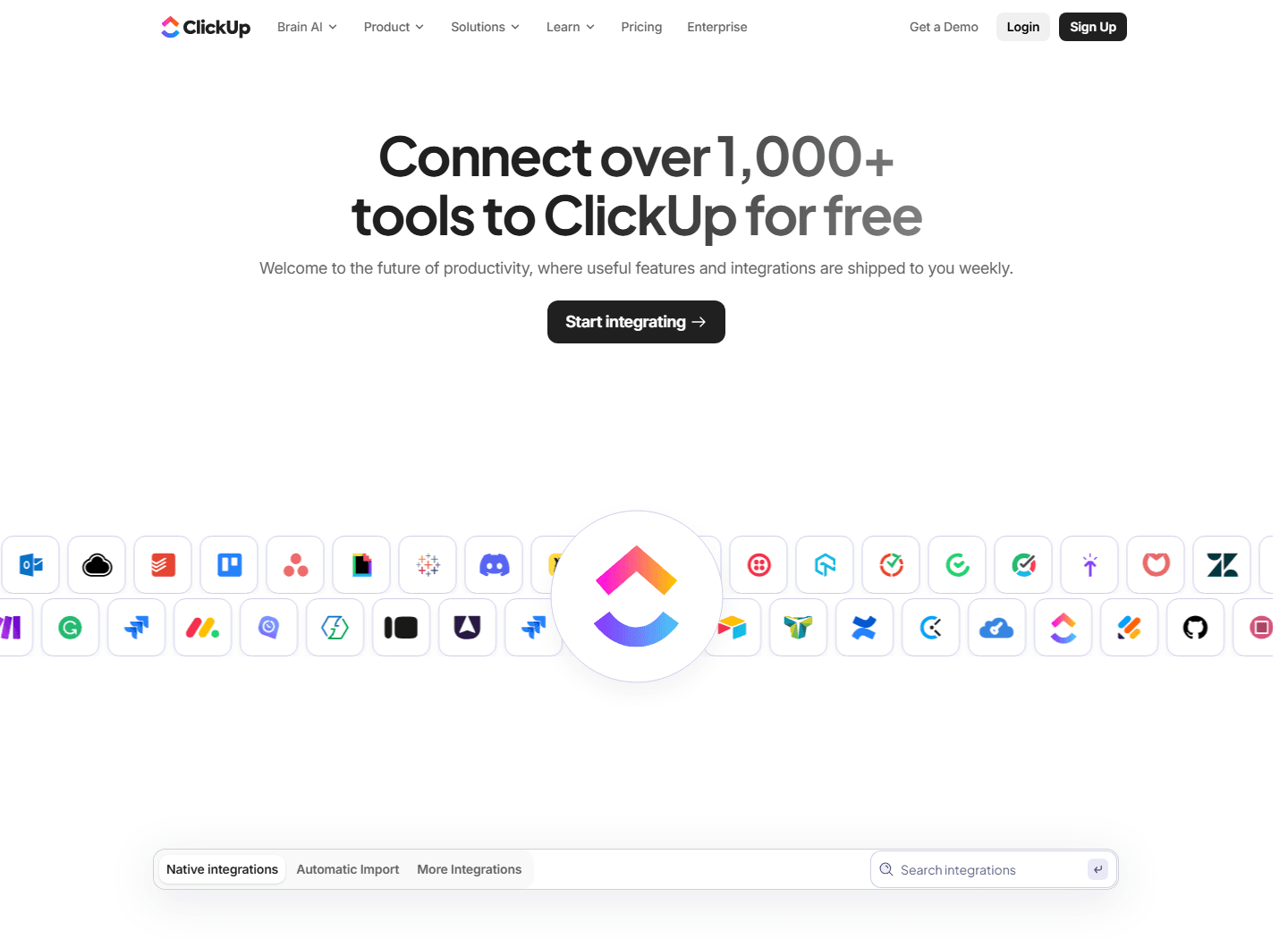
ClickUp's official integrations page says teams can connect over 1,000+ tools to ClickUp for free. It separates the page into native integrations, automatic import, and more integrations. That split is important because not every integration has the same depth.
Native integrations are usually the ones buyers care about first. ClickUp lists options across Slack, GitHub, GitLab, Webhooks, HubSpot, Google Drive, OneDrive, Dropbox, Outlook, Google Calendar, Figma, Zoom, Bitbucket, Chrome, Sentry, Microsoft Teams, Intercom, Box, Zendesk, Front, Clockify, Twilio, Calendly, Miro, Discord, Tableau Web Connector, and more.
Automatic import is a different job. Moving from Asana, Trello, Todoist, Jira, Monday.com, Basecamp, Wrike, or Confluence into ClickUp can speed up consolidation, but import is not the same as a perfect migration. Owners, statuses, attachments, comments, fields, dependencies, and historical context can still need cleanup.
Third-party tools fill many gaps. Zapier, Make, Unito, OpenAI, Google Sheets, Canny, Shift, CloudApp, EasyInsight, and other bridge products can extend ClickUp. But bridges are not free in practice. Someone must own the account, monitor failures, understand rate limits, and explain why a task was not created when a webhook silently broke.
| Integration path | What ClickUp shows | How to test it |
|---|---|---|
| Native integrations | ClickUp lists built-in options like Slack, GitHub, GitLab, Webhooks, HubSpot, Google Drive, OneDrive, Dropbox, Outlook, Google Calendar, Figma, Zoom, Intercom, Zendesk, Front, Clockify, Sentry, and many more. | Good for common product, support, docs, and development workflows. Still test the exact direction of the sync. |
| Automatic import | ClickUp lists import paths for Asana, Trello, Todoist, Jira, Monday.com, Basecamp, Wrike, and Confluence. | Useful when the goal is consolidation. Validate attachments, owners, statuses, and historical comments before you turn off the old tool. |
| Third-party integrations | The integrations page says ClickUp connects to 1,000+ tools through integrations built by other companies. | This is where Zapier, Make, Unito, OpenAI, Google Sheets, and other bridges can help, but every bridge adds another account, quota, and failure point. |
| Custom API and webhooks | The developer site says teams can build integrations and apps with the Public API, use webhooks, OAuth, and ClickUp MCP. | Best for teams with a developer owner. Without that owner, custom integrations become a backlog item everyone forgets about. |
Automation workload
Automations save time only when the process is already clear.
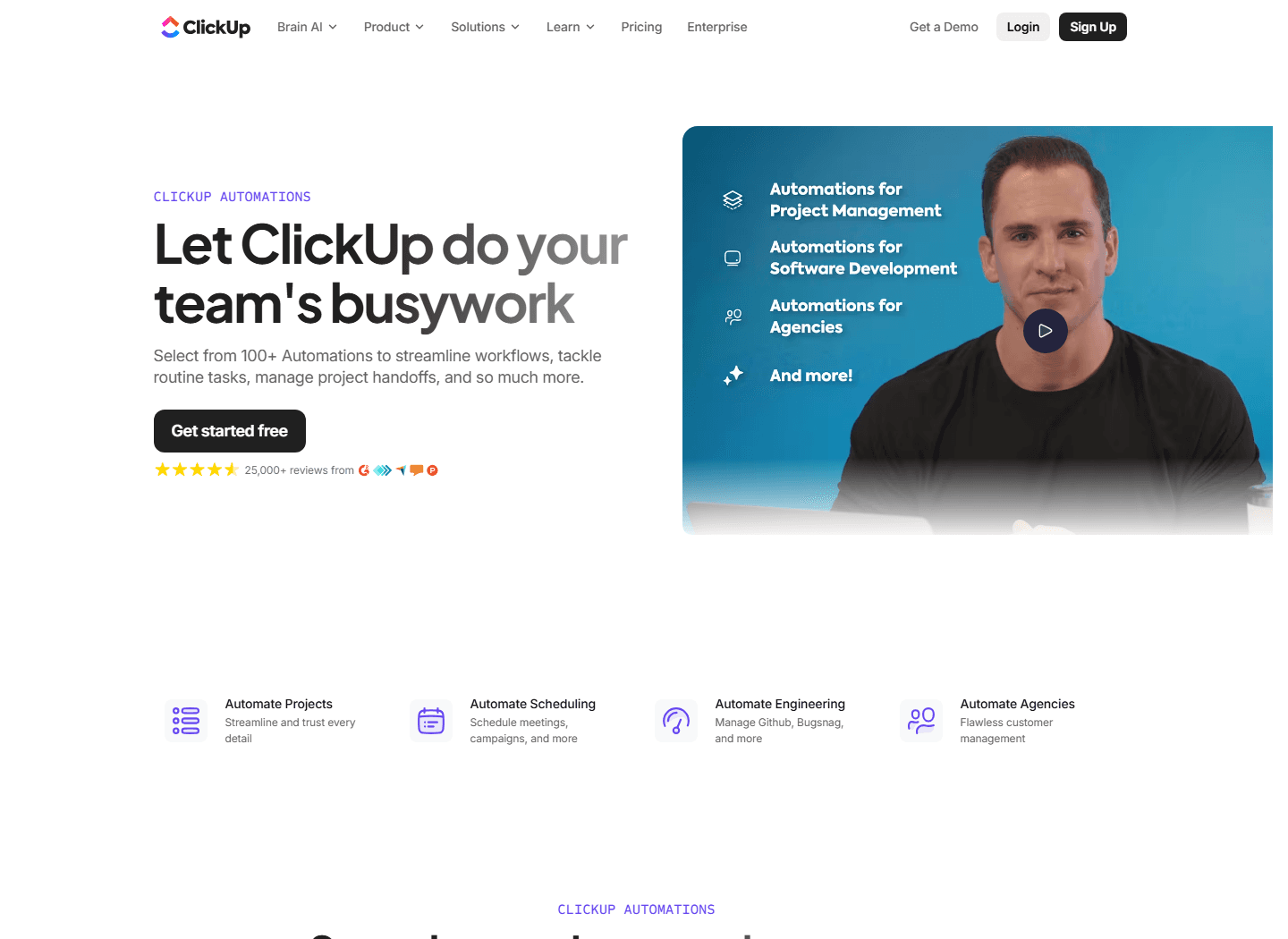
ClickUp's automations page says teams can select from 100+ automations to streamline workflows, tackle routine tasks, and manage handoffs. It also calls out AI Automation Builder, prebuilt templates, dynamic assignees, project shortcuts, email automation, audit logs, AI actions, integrations, and custom webhooks.
That sounds like a shortcut, and sometimes it is. A status change can assign a reviewer. A form submission can create a task. A sprint label can notify engineering. A customer feedback item can move into a product backlog. These small rules remove annoying work when the underlying process is stable.
The danger is using automations to hide a messy process. If your team cannot agree on statuses, owners, escalation paths, or what counts as done, automations will multiply the confusion. ClickUp is flexible enough to let five departments build five versions of reality. That flexibility is power when someone governs it and noise when nobody does.
Business includes the features that many integration-heavy teams will notice: Webhooks & Automation Integrations and 5K automations per month, according to the official pricing page. If you are buying ClickUp because of automation, the plan decision should start there.
Good automation use
Repeatable intake, predictable status changes, deadline reminders, handoffs, assignment rules, and notifications that reduce manual checking.
Bad automation use
Trying to compensate for unclear ownership, vague task names, overloaded statuses, or a team that does not trust the workspace.
30-minute test
Pick one recurring workflow and build the smallest automation that removes one manual step. If nobody can define that step, do not automate yet.
Builder reality
The API is part of the buying decision if your workflow lives outside the default connectors.
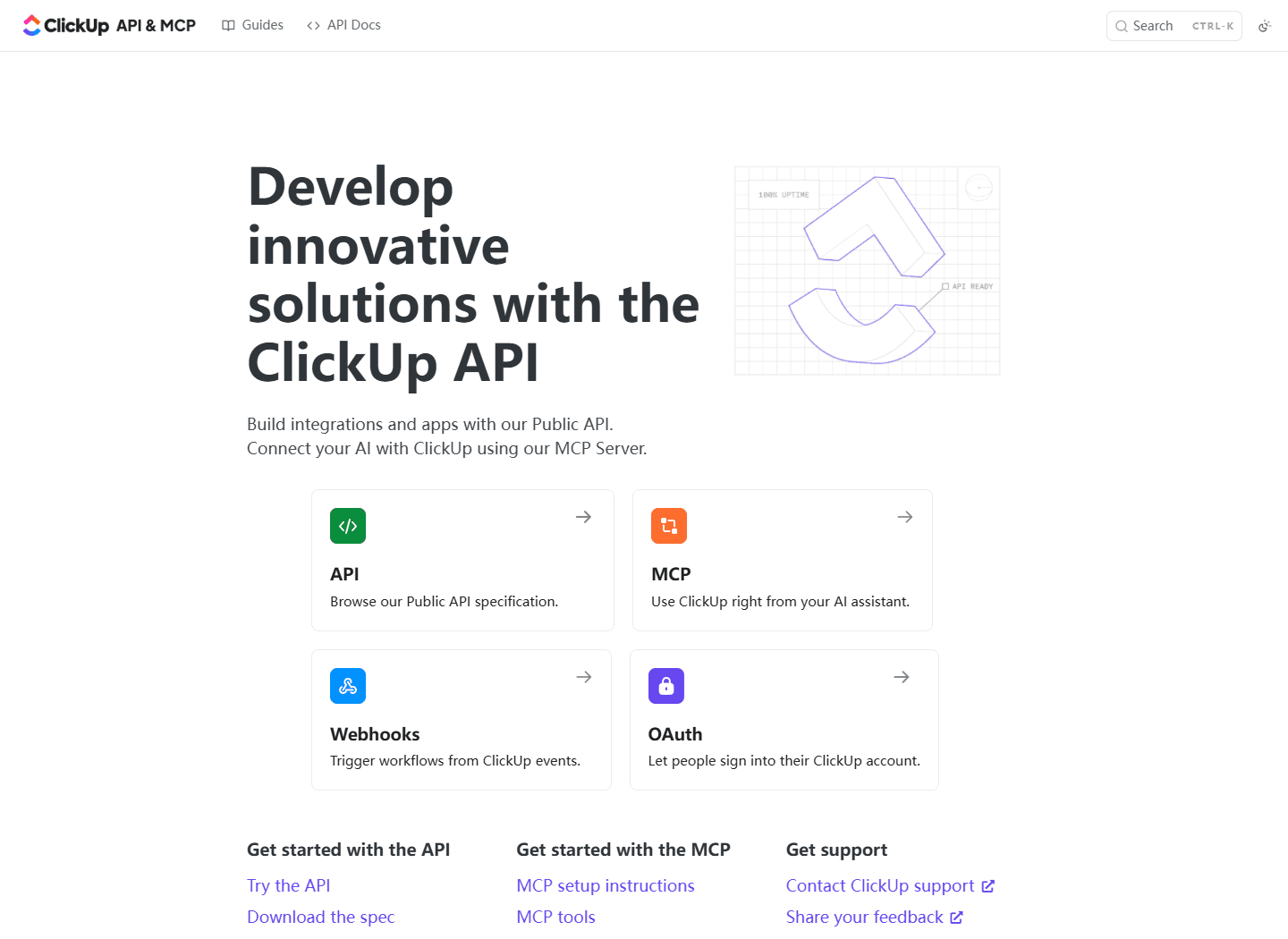
The official developer site says teams can build integrations and apps with ClickUp's Public API, connect AI with the ClickUp MCP Server, trigger workflows with Webhooks, and use OAuth. That is the right shape for teams that have internal tooling or a developer who can own the glue.
The phrase own the glue matters. Custom integrations are not one-time magic. They need authentication, retries, field mapping, error logging, version awareness, and someone who cares when an endpoint changes or a workflow owner adds a required custom field.
The Reddit screenshot is useful here because one commenter describes building a ClickUp CLI and then lists places where API behavior did not match web UI behavior. Their examples include rich text colors and highlights, link unfurl previews, GitHub or GitLab PR linking into the task sidebar, chat message file attachments, and native table blocks in comments.
That does not mean ClickUp's API is bad. It means you should test the exact operation you need. If your team wants to build a command-line helper, a reporting export, a backup job, or a support-to-product bridge, run the API test before you choose the plan.
API fit
You have a developer owner, clear field mapping, a small first use case, and a way to monitor failures.
API risk
Your workflow needs UI-only behavior, attachment handling, rich content, or deep bidirectional sync that the API path does not expose cleanly.
First test
Create one task, update one custom field, add one comment, attach one file if needed, and export the result. If that flow breaks, do not buy the story yet.
Customer research
The Reddit complaints are specific, which makes them useful.
The Reddit screenshot supplied for this article starts with a ClickUp user asking which integration should already exist but does not. The visible replies are short, but they have more buying value than a vague review because they name concrete holes.
One person asks for Xero. Another asks for Zabbix. Another says HighLevel. A longer reply asks for a native automation that backs up files uploaded through forms to third-party cloud storage. That person likes form uploads, but does not want ClickUp to become the team's accidental file storage system.
The developer reply is the most useful for technical buyers. They are not complaining that ClickUp lacks an API. They are saying the API does not cover certain web UI behaviors they need for better third-party tooling. That is exactly the kind of issue that appears after the sales page has already done its job.
Use this as a checklist, not a verdict. If your ClickUp rollout depends on accounting sync, infrastructure monitoring, HighLevel handoffs, bulk file handling, PR linking, rich comments, or chat attachments, verify those paths in a trial workspace. If you do not need those paths, the complaints may not matter to you.
Missing accounting and ops connectors
Visible replies asked for Xero, Zabbix, and HighLevel. That does not prove a broad market trend, but it shows how fast the word integrations turns into specific operational demands.
Form uploads need a real storage path
One Reddit reply praised form uploads but complained that ClickUp is not a cloud storage platform and that bulk export is hard. For intake-heavy teams, attachment handling can decide the whole workflow.
API details matter to builders
A developer comment listed rich text colors, link previews, PR links, chat file attachments, and native table blocks as places where API behavior did not match what the web UI can do.
Reddit bias warning
Reddit skews toward annoyed power users and technical buyers. Use it for language and edge-case discovery, not as a statistically clean product survey.
Fit and misfit
ClickUp works best when it becomes the team's shared operating surface, not another tab.
ClickUp is strongest when work already crosses several lightweight tools and the team wants one place to see tasks, docs, handoffs, files, approvals, reports, and intake. Agencies, product teams, marketing teams, operations teams, and founders often feel this pain first because the work is messy by nature.
It is weaker when the team needs a specialized tool to do one job extremely well. Accounting is a good example. So is dedicated help desk work, advanced engineering project management, or regulated document control. ClickUp can connect to many of those workflows, but connecting is not the same as replacing.
The best ClickUp buyer is usually a person with enough authority to set workspace rules. They can decide which statuses exist, what custom fields mean, who owns intake, what counts as done, and when a team is allowed to add another automation. Without that person, ClickUp tends to grow sideways.
That is not a product insult. Flexible systems need governance. Spreadsheets have the same problem. Give a team infinite columns and no rules, and they will build a private language nobody else can read.
Best for
Teams that already live in tasks, docs, forms, calendars, dashboards, and recurring handoffs, especially when ClickUp can retire at least one paid tool.
Not for
Teams that need a narrow best-in-class tool, a finance-grade accounting system, a full support platform, or integrations that work exactly like custom internal software.
Best buyer
An operations lead, agency owner, product manager, or founder who can define the workspace rules and stop every team from building its own private maze.
Common failure mode
A team upgrades because the plan looks cheap, then spends the next month rebuilding half its process through automations, webhooks, Zapier, and manual cleanup.
Upgrade test
Run the upgrade test before moving from price curiosity to paid rollout.
The right ClickUp plan is the cheapest plan that supports the workflow you can prove. Not the workflow you might build someday. Not the dashboard your manager liked in a demo. The one your team can use next week without inventing a parallel process in Slack.
Start with seat math. Count who edits, who approves, who reports, who only comments, and who can remain a guest. Then do tool replacement math. If ClickUp replaces a paid project tool, wiki, forms tool, lightweight dashboard, and some internal request process, the $7 or $12 plan can be easy to defend. If it replaces nothing, the plan is just another recurring charge.
Next, run the integration proof. Pick the five workflows that matter most. For example: form intake to task creation, GitHub PR to ClickUp task context, customer support issue to product backlog, file upload to storage, and dashboard update for leadership. Build each one with real fields and real users before you decide the plan.
Finally, do exit math. Export a project. Export comments. Export attachments. Export custom fields. You do not need to leave ClickUp today, but you should know whether leaving would be a weekend project or a quarter of regret.
Seat math
Count every person who needs to edit, manage, approve, or report. Guest access can help, but guests are not a substitute for real operators.
Tool replacement math
List the tools ClickUp will truly replace this quarter. Do not count a tool as replaced until a team has stopped using it in a live workflow.
Integration proof
Test the exact connector path before upgrading: trigger, field mapping, attachment behavior, error handling, and whether updates sync in both directions.
Admin cost
Assign one owner for spaces, statuses, custom fields, dashboards, automations, and permission cleanup. Without an owner, ClickUp turns flexible into messy.
Exit cost
Before you commit, export a sample project with tasks, comments, attachments, custom fields, and Docs. A cheap plan feels different when leaving is painful.
Implementation cost
The hidden cost is not setup. It is agreeing how work should move.
ClickUp setup can look easy because the product lets you create spaces, folders, lists, statuses, docs, forms, automations, dashboards, and fields quickly. Fast creation is not the same as good information architecture. The hard part is deciding what should exist.
For a small team, I would start with one workspace, one shared naming system, one intake form, one project template, and one dashboard that people actually review. Add complexity only when a real workflow asks for it. If nobody uses a view for two weeks, delete it or archive it.
For a larger team, make the admin role explicit. Someone should own status design, custom fields, permissions, integration reviews, automation audits, dashboard definitions, and cleanup. If everyone can add anything, eventually nobody knows what is official.
Migration has its own cost. Imports can save time, but they also bring old clutter into the new workspace. Before importing everything, move one live project and one recently completed project. The live project shows daily behavior. The completed project shows whether history, comments, and attachments remain useful.
This is also where ClickUp's flexibility becomes a buying filter. If your team likes systems and can tolerate setup, ClickUp can replace a surprising amount of scattered work. If your team wants a narrow tool that refuses bad choices, ClickUp may feel too open.
FAQ
Common questions about ClickUp pricing and integrations.
How does ClickUp pricing work?
ClickUp pricing starts with Free Forever, then Unlimited at $7 per user/month billed yearly, Business at $12 per user/month billed yearly, and Enterprise by custom demo. The meaningful decision is not just the sticker price. It is whether your team needs Business features like Webhooks & Automation Integrations, advanced dashboards, custom exporting, and higher automation capacity.
Are ClickUp integrations included on every paid plan?
ClickUp's pricing page lists unlimited integrations on Unlimited. Business adds Webhooks & Automation Integrations. If your workflow depends on webhooks, automation integrations, or custom API work, test those paths before assuming the lower plan is enough.
What are the most common ClickUp integrations complaints?
The Reddit screenshot supplied for this article surfaced requests for Xero, Zabbix, and HighLevel, plus complaints about file backup from form submissions and API gaps around rich text, link previews, PR links, chat attachments, and native table blocks.
Who should use ClickUp?
ClickUp fits teams that want tasks, docs, dashboards, forms, calendars, automations, and integrations in one workspace, and that have someone willing to own the setup. It works best when it replaces real tools, not when it becomes one more place to check.
Who should skip ClickUp?
Skip ClickUp if you need a narrow tool with less admin work, a specialized accounting or support platform, or a workflow where missing integrations would force manual work every week.
Official sources