SwitchMyTool

Practical take
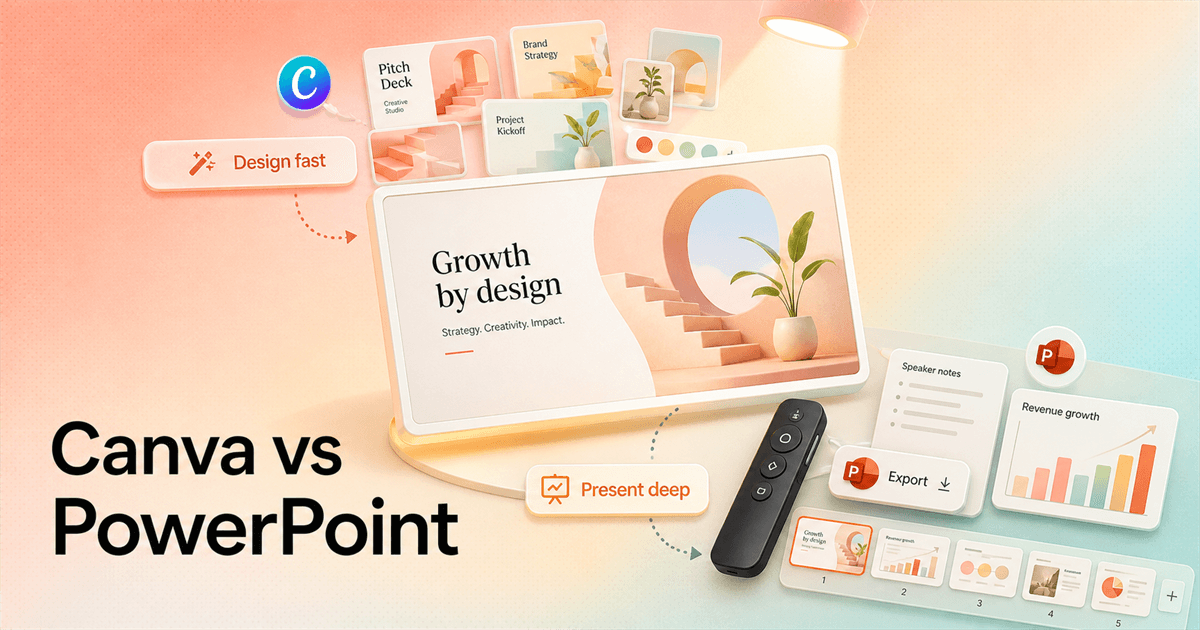
Canva wins the first draft. PowerPoint often wins the final handoff.
- Choose Canva when a non-designer needs to turn rough content into a clean, on-brand deck quickly, then reuse the same material in social posts, video, print, or other visual formats.
- Choose PowerPoint when the deck will live inside Microsoft 365, travel as a PPTX file, run offline, use detailed speaker tools, or pass through clients and coworkers who expect PowerPoint.
- Canva has the gentler first hour. PowerPoint usually has the stronger final mile for a formal presentation delivered in a conference room, classroom, board meeting, or sales process.
- Both have free browser access. The paid decision depends less on slide count and more on whether you are buying a visual content system or an Office productivity suite.
- Do not switch a high-stakes deck on faith. Move one real 12-slide presentation, open it on the destination machine, and count every font, layout, animation, chart, note, and media fix.
The real choice
Canva vs PowerPoint is a workflow question disguised as a design argument.
The usual Canva vs PowerPoint debate starts with looks. Canva feels newer. PowerPoint feels familiar. Someone shares a dreadful corporate slide, someone else shares a glossy Canva template, and the verdict seems obvious for about thirty seconds.
Then the deck has to survive real work. A sales manager needs to update the numbers. A client asks for the PPTX. The conference room has unreliable Wi-Fi. The speaker needs private notes and a timer. Legal wants its approved footer. A teammate opens the file on another laptop and three fonts move. That is where the attractive demo ends and the software decision begins.
Canva is a broad visual creation platform. Presentations sit next to social posts, video, whiteboards, documents, websites, print designs, stock media, brand kits, and AI-assisted creation. Its strongest promise is speed: a person with limited design training can start from a good template and make something presentable before the deadline starts breathing down their neck.
PowerPoint is a presentation application inside Microsoft 365. It has decades of habits, file compatibility, templates, slide masters, notes, charts, animations, rehearsals, exports, and organizational baggage behind it. Its strongest promise is not that every slide will look good. It is that a presentation can move through an established Office workflow and still be editable at the other end.
I would not call one modern and the other outdated. That is lazy. Canva is better at reducing the blank-page problem. PowerPoint is better at reducing the last-mile problem when the file, presenter, and audience live in a conventional business or education environment.
Short version
Pick the tool based on what happens after the deck looks good.
Choose Canva when the hardest part is visual creation. It is the stronger default for occasional designers, small marketing teams, teachers, creators, and founders who want templates, stock assets, quick brand consistency, and easy reuse across more than slides.
Choose PowerPoint when the hardest part is delivery and handoff. It is the safer default when the file must remain PPTX, the organization already uses Microsoft 365, the presentation runs offline, or a client and several coworkers will keep editing it after you send it.
Use both when the visual campaign and the formal deck have different owners. Canva can handle campaign art and early slide exploration. PowerPoint can own the final presentation file. This is not elegant, but it is often less painful than forcing one tool to cover every requirement.
The deciding question is simple: who touches the file next, and what do they expect to receive? If the answer is a client asking for PowerPoint, do not wait until the night before delivery to test an export.
| Decision area | Likely winner | Why | Watch out for |
|---|---|---|---|
| Starting from a blank page | Canva | Templates, stock media, brand assets, and simple drag-and-drop editing make a presentable first draft easier for occasional designers. | Fast starts can produce familiar-looking decks if nobody edits the template with restraint. |
| Formal business delivery | PowerPoint | PPTX handoff, desktop apps, Presenter View, Speaker Coach, detailed animations, notes, and Microsoft 365 workflows fit established presentation habits. | PowerPoint gives you enough control to make a very good deck or an impressively bad one. |
| Repurposing content | Canva | A deck can sit beside social graphics, video, whiteboards, print pieces, and other campaign assets in one visual workspace. | The presentation may be only one output among many, rather than the deepest part of the product. |
| File compatibility | PowerPoint | If the client, school, company, or event organizer asks for PPTX, the native format removes a layer of export risk. | Compatibility still depends on fonts, media, add-ins, and the version installed on the receiving computer. |
| Fast team adoption | Depends | Canva is usually easier for new visual creators. PowerPoint is often already familiar inside Office-heavy organizations. | The tool people know is not always the tool they use well. |
Official positioning
Canva sells fast visual creation. Microsoft sells a presentation workflow that reaches the room.
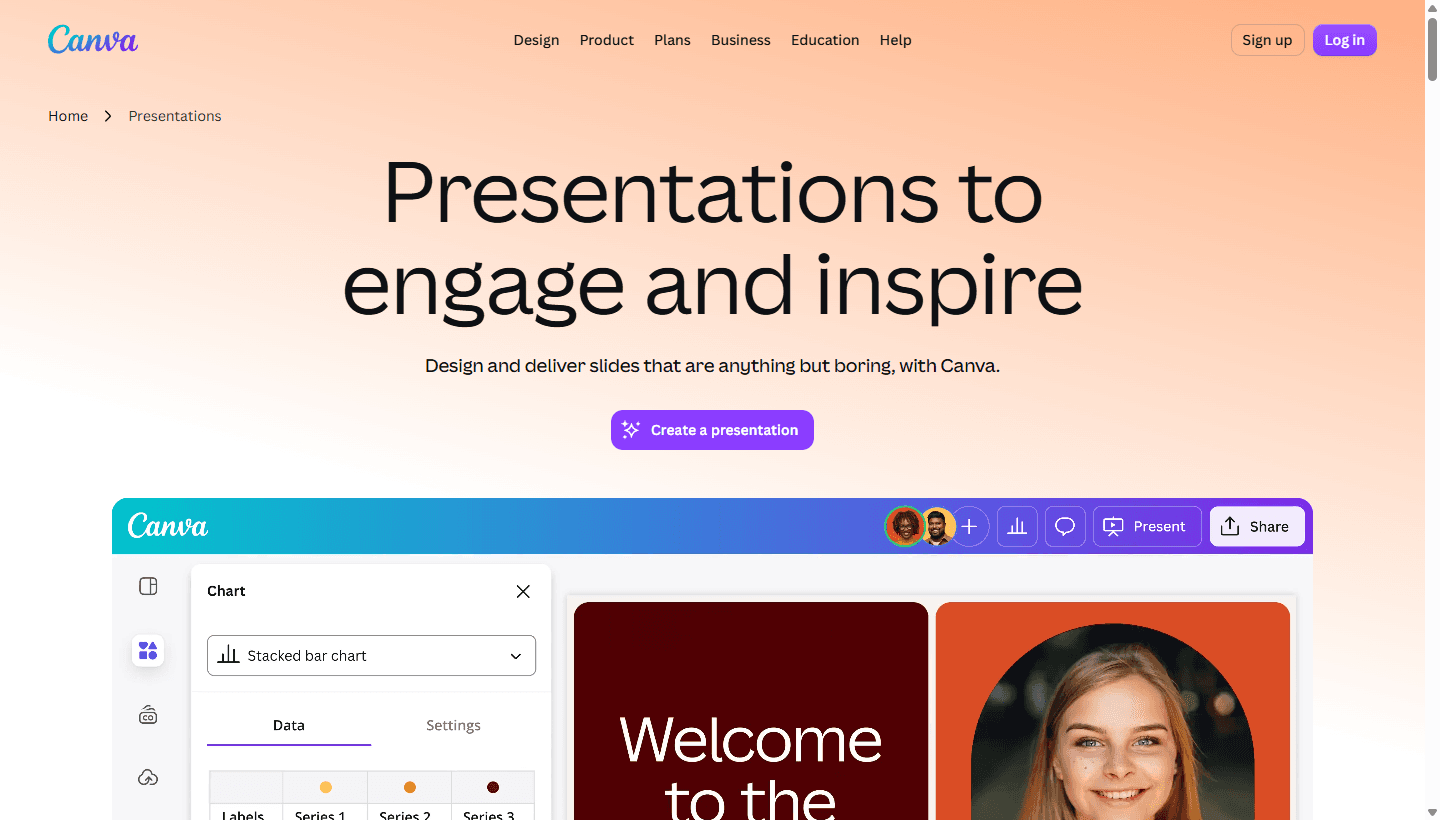
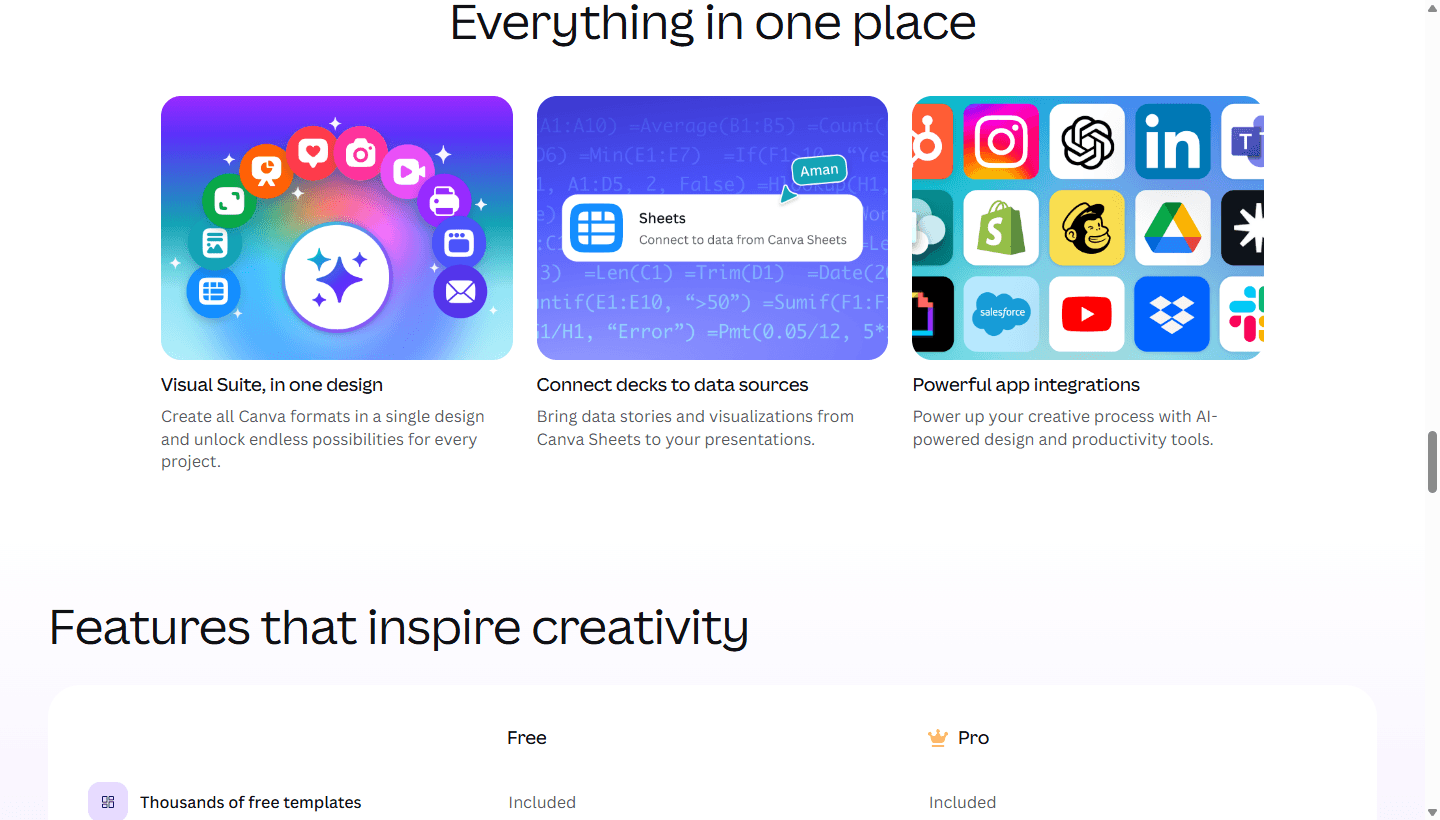
Canva's current presentation page leads with designing and delivering slides that engage. The product page quickly expands beyond slides into AI generation, templates, data, collaboration, mobile control, recording, polls, quizzes, app integrations, and the wider Visual Suite. That breadth is the point. A Canva presentation belongs to the same content system as the rest of a campaign.
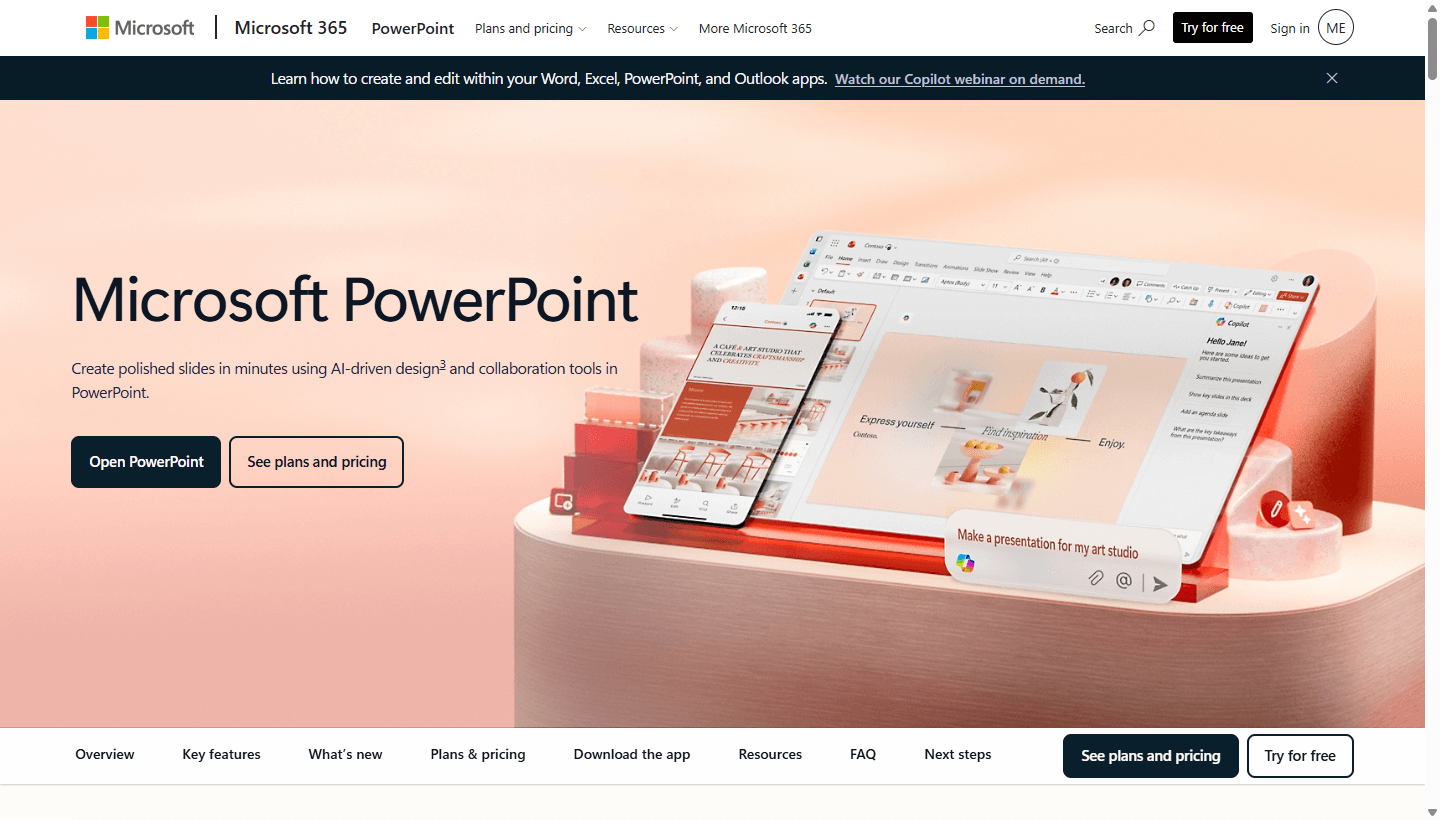
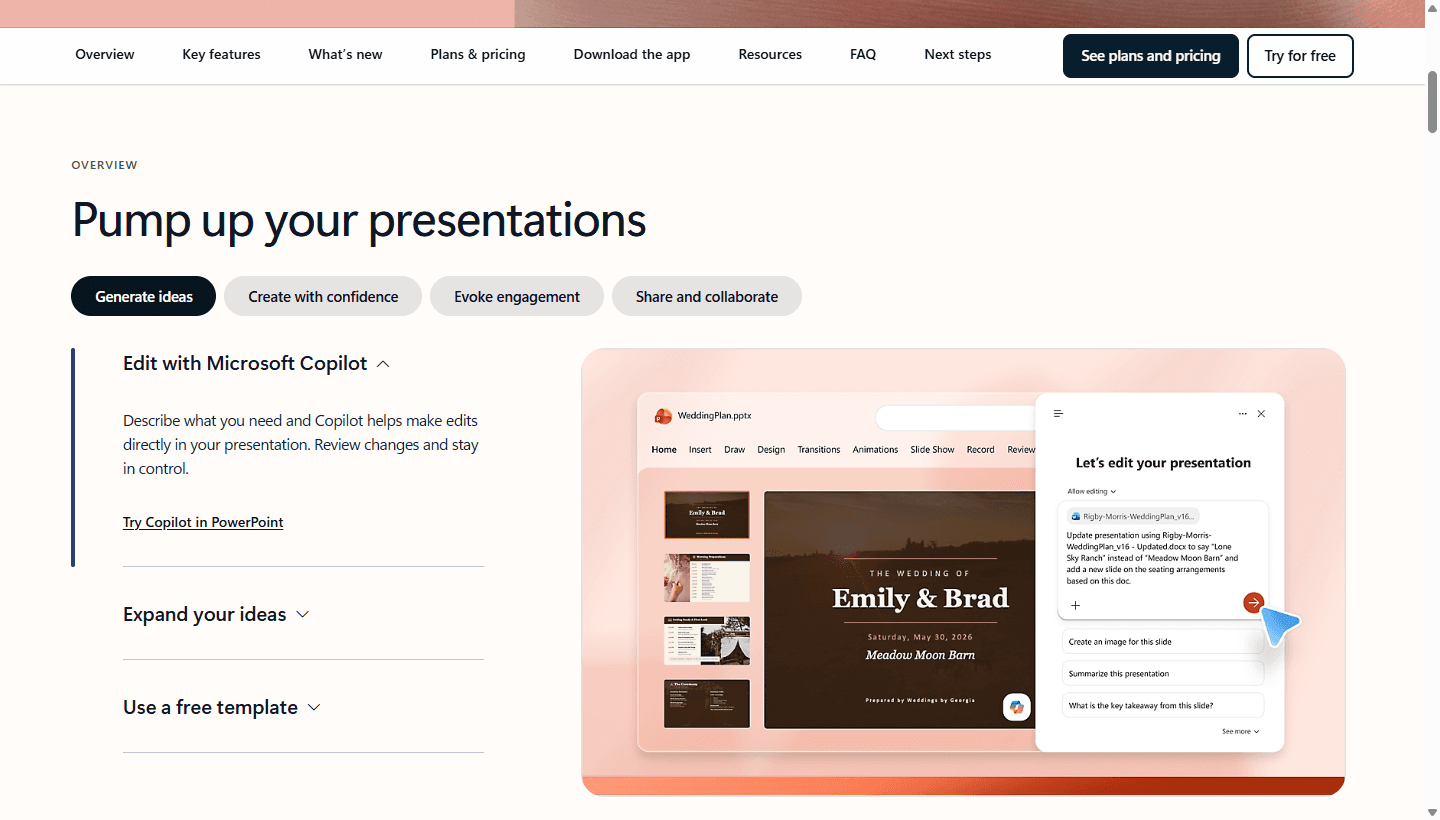
Microsoft's current PowerPoint page leads with polished slides, AI-driven design, and collaboration. It also puts the desktop and mobile product front and center. Farther down the page, Microsoft emphasizes Copilot editing, templates, Designer, handwriting, video, Speaker Coach, accessibility, real-time collaboration, and the Microsoft 365 bundle.
The difference is subtle but useful. Canva starts with the creator and asks what visual asset needs to exist. PowerPoint starts with the presentation and asks how it will be created, edited, rehearsed, shared, and delivered. If your work ends when the PDF is approved, Canva looks strong. If your work ends after the live talk and the client takes ownership of the deck, PowerPoint's depth matters more.
Pricing and free plans
PowerPoint can cost less for an Office user. Canva can return more value for a content creator.
Both products have a useful free entry point. Canva Free includes presentation creation, templates, media, collaboration, and presentation modes. Microsoft lists PowerPoint for the web as free for one person, with real-time collaboration, basic creative assets, dictation, and 5 GB of storage.
Paid pricing is harder to compare because the subscriptions buy different things. Canva's US page listed Canva Pro at $144 per year for one person when I checked on July 10, 2026. Canva localizes pricing, so your country, tax, billing cycle, and current plan screen should be the final source.
Microsoft listed Microsoft 365 Personal at $99.99 per year or $9.99 per month. That price includes desktop PowerPoint plus Word, Excel, Outlook, OneNote, 1 TB of OneDrive storage, and Copilot features. Family and Premium plans cost more and cover different people or AI usage levels. Again, use the live page before buying because bundles and regional prices change.
On subscription price alone, PowerPoint looks cheaper for one person who needs the desktop app. That comparison can still mislead. A marketer who also needs social templates, stock video, quick resizing, brand assets, and campaign graphics may get more practical output from Canva Pro. An Office user who already pays for Microsoft 365 may view PowerPoint as effectively included.
The hidden cost deserves more attention than the sticker price. Canva can create cleanup work when a file moves into PowerPoint. PowerPoint can create production work when a non-designer starts from a blank corporate template and spends two hours moving text boxes by six pixels. Price the workflow, not the icon on the invoice.
| Cost question | Canva | PowerPoint |
|---|---|---|
| Free entry point | Canva Free includes presentation creation, a large template and media library, collaboration, and several presentation modes. | PowerPoint for the web is free for one person and includes sharing, real-time collaboration, basic templates, fonts, icons, stickers, dictation, and 5 GB of cloud storage. |
| Individual paid plan | Canva's US pricing page listed Canva Pro at $144 per year for one person when checked on July 10, 2026. Prices and plan names can vary by country. | Microsoft listed Microsoft 365 Personal at $99.99 per year or $9.99 per month. It includes the desktop PowerPoint app, other Office apps, 1 TB of storage, and Copilot features. |
| Subscription bundle | A visual content platform with premium templates, media, brand controls, AI tools, and outputs beyond presentations. | A productivity suite with desktop Office apps, cloud storage, collaboration, file compatibility, security features, and PowerPoint as one part of the bundle. |
| Likely hidden cost | Template sameness, premium asset dependence, and cleanup after exporting a deck into a stricter Office workflow. | Time spent formatting slides manually, managing Office versions, and making a complex deck behave on someone else's machine. |
Design speed
Canva is better when your main enemy is the empty slide.
Canva makes the first twenty minutes easier. Pick a presentation type, search the template library, replace the copy, swap a few images, apply brand colors, and the deck already has rhythm. For a founder making an investor update or a teacher preparing tomorrow's lesson, that head start is not cosmetic. It may be the difference between finishing and postponing.
The wider Canva library also changes how people work. A presentation can borrow from stock photos, illustrations, video, charts, apps, brand assets, and other campaign pieces without much ceremony. If the same announcement needs a slide, an Instagram post, a handout, and a short clip, keeping the work inside one visual platform saves context switching.
Canva's weakness is the same thing that makes it fast. Templates do a lot of thinking for you. If five competitors choose the same fashionable template and make the same light edits, all five decks can look suspiciously related. Good Canva work needs deletion, restraint, and a willingness to break the template where the story demands it.
PowerPoint can start quickly too. Microsoft offers free templates and Designer suggestions, while Copilot can draft or edit content for eligible users. The difference is that PowerPoint still feels more like an open workbench. That is useful for an experienced slide designer and less comforting for someone who wanted the software to make more choices for them.
For raw time to a clean first draft, I give Canva the edge. For precise control over an established presentation style, the gap narrows fast. A skilled PowerPoint user with a good master template can be quicker than a Canva user wrestling a trendy layout into a strict corporate format.
Presenting control
PowerPoint earns its keep after the design is finished.
A presentation includes more than slides. It is a live performance, a file, a rehearsal, a handoff, and sometimes a mildly terrifying ten minutes in front of people who can approve a budget. PowerPoint has spent a long time around that reality.
Microsoft's current product pages emphasize Presenter tools, Speaker Coach, Designer, Copilot, collaboration, video, accessibility, and exports. Speaker Coach can give feedback on pace, pitch, filler words, and whether you are reading the slide. Presenter View gives the speaker access to notes and navigation while the audience sees the slide show. These features matter when the person speaking is as important as the file.
PowerPoint also gives experienced users more room to control slide masters, layouts, charts, diagrams, timings, transitions, object order, and animation sequences. Most decks should use less animation than their creators want. Still, when a sequence needs to reveal information in a precise order, native control beats hoping an exported effect survives.
Canva has become much more capable at presenting. Its official page promotes recording, mobile slide control, offline presenting, presenter notes, polls, quizzes, and presentation shortcuts. That is enough for many webinars, lessons, internal talks, and creator presentations. It is no longer fair to treat Canva as a poster tool that happens to have slides.
PowerPoint keeps the edge for formal, complex, or Office-native delivery. Canva keeps the edge when the visual design and audience engagement features matter more than a deep PPTX workflow. The room decides this category, not the beauty of slide three.
Collaboration and handoff
Both support teamwork, but the next editor changes the answer.
Canva collaboration feels natural for visual content teams. People can work in the browser, comment, share templates, pull from brand assets, and move between presentations and other formats. A non-designer can usually understand what is editable without learning slide masters first.
PowerPoint also supports real-time collaboration when the presentation lives in OneDrive or SharePoint. Microsoft documents coauthoring across web, mobile, and desktop apps. For an organization already using Teams, Outlook, SharePoint, and OneDrive, that collaboration sits inside familiar account, permission, and file-management systems.
The practical difference appears at handoff. Canva's easiest handoff is a Canva link, a PDF, a video, or another finished output. PowerPoint's easiest handoff is the editable PPTX that many companies, schools, agencies, and event teams already expect. Sending the native format avoids one conversion, one permission question, and one opportunity for layout drift.
This does not make PowerPoint collaboration automatically pleasant. Versions still multiply when people email attachments. Fonts still disappear. People still save files as final-final-v7. Microsoft 365 reduces those problems only when the team agrees to use the shared cloud file instead of treating every edit like 2009.
Canva is safer when collaborators need guardrails and visual confidence. PowerPoint is safer when collaborators need native ownership of the presentation file. If both are true, assign a source of truth before the first review round.
Reddit signal
Reddit's jokes point to a serious split between design culture and presentation culture.
The Reddit discussion I reviewed opened with a visual joke: Canva users were framed as polished and carefree, while PowerPoint users looked like they were operating mission-critical equipment. It is funny because both stereotypes contain a little truth. Canva often serves visible creative work. PowerPoint often serves institutions where the deck must survive process, hierarchy, and someone else's laptop.
Several commenters described Canva as casual, fast, and suitable for people without deep design experience. They brought up posters, infographics, simple presentations, and low-budget creative work. That maps cleanly to Canva's strength: helping a person make something attractive without first becoming a presentation specialist.
PowerPoint supporters pushed back on the idea that it is obsolete. They pointed to presentations as its actual job and to the depth available when a user knows what they are doing. A few comments also noted that many people use old versions or bad templates, then blame the application for the result.
The recurring complaint about Canva was not that it cannot make slides. It was that replacing PowerPoint or Google Slides with Canva can feel wrong when the workflow depends on familiar presentation controls and file exchange. The recurring complaint about PowerPoint was not that it lacks power. It was that its interface, history, and overused templates can make the experience feel heavier than the task requires.
Treat these comments as customer language, not market share data. Reddit skews toward people motivated enough to argue about software, and the original prompt encouraged jokes. The useful signal is the context split: Canva for approachable visual creation, PowerPoint for dedicated presentation work and institutional compatibility.
| Reddit theme | What it means |
|---|---|
| Canva is easier for casual creators | People in the discussion repeatedly framed Canva as the friendlier tool for posters, infographics, simple decks, and people who do not want to learn a deep presentation application. |
| PowerPoint is still the presentation default | Several comments treated PowerPoint as the obvious choice when the job is a presentation, especially in business, education, government, or any organization already built around Office files. |
| Bad decks damage PowerPoint's reputation | The thread mixed jokes about old templates and institutional slide culture with criticism of the software. Those are related, but they are not the same problem. |
| Canva and PowerPoint overlap, but they are not identical | Canva is a broad visual creation platform. PowerPoint is a dedicated presentation application inside a larger productivity suite. The overlap is real, yet each product has a different center of gravity. |
| Confidence warning | This was one Reddit discussion with a strong meme-shaped prompt. It is useful for language and recurring frustrations, not a representative survey of all presentation users. |
Choose Canva
Choose Canva when the deck is part of a larger content job.
Canva is the better choice for the person who has a message but does not want presentation software to become a side career. A solo marketer can create a webinar deck, social promotion, an event poster, a handout, and a recap video without rebuilding the visual language in five unrelated tools.
It is also strong for teachers, community teams, creators, local businesses, and founders who need polished output from a small team. Templates reduce setup. Brand tools reduce random color choices. Browser collaboration makes it easier to get feedback from someone who does not have desktop software installed.
Canva makes sense when the file's life ends with presenting, publishing, or exporting a finished asset. If the recipient only needs a PDF, view link, or video, there may be no reason to preserve a complex editable PowerPoint file.
Skip Canva as the main source when the deck must keep moving through a PowerPoint organization. If the client will edit charts, add slides, apply its own master, or merge your work into a larger PPTX, build the final deliverable where it will live. Export cleanup is a poor use of a deadline.
Best for
Solo marketers, creators, teachers, founders, community teams, small businesses, and anyone who needs attractive slides without spending an afternoon building a visual system from scratch.
Not for
Teams whose presentation source of truth must remain a complex PPTX with corporate templates, advanced slide behavior, embedded Office content, strict offline delivery, or client-side editing in PowerPoint.
Common Reddit complaint
Canva is easy to start, but experienced presentation users can feel boxed in when they want the deeper controls and familiar delivery workflow they already have in PowerPoint.
Best trial
Build a client proposal, reuse three slides as social graphics, invite a non-designer to edit it, and export the final deck. Count the cleanup after export as carefully as the time to first draft.
Choose PowerPoint
Choose PowerPoint when the deck must survive delivery, editing, and ownership changes.
PowerPoint is the safer choice for consultants, sales teams, executives, educators, agencies, and speakers who exchange editable decks with other Office users. The format is expected, the desktop app works offline, and the surrounding organization usually knows how to store, review, and present the file.
It is stronger when the presentation contains detailed charts, custom layouts, embedded media, precise builds, extensive speaker notes, or material copied from Excel and other Office apps. It is also the sensible default when an event producer asks for a PPTX and plans to run it from the venue computer.
PowerPoint rewards skill more than Canva. A good master and disciplined layout system make it fast. A weak template and no hierarchy make it miserable. The application rarely stops a user from shrinking the font, adding six colors, or animating every bullet. Freedom is useful, but it sends an invoice later.
Skip PowerPoint as the only creative platform if your team spends most of its time making social graphics, short videos, posters, and rapid campaign assets. You can force PowerPoint into those jobs. You will spend more time managing the tool than the work deserves.
Best for
Consultants, sales teams, educators, executives, event speakers, Office-heavy companies, and anyone handing a PPTX to another person who will keep editing it.
Not for
Occasional visual creators who mainly want modern templates, stock assets, quick drag-and-drop composition, and easy reuse across social, video, and print formats.
Common Reddit complaint
PowerPoint can feel old, dense, and responsible for too many miserable meetings. The fairer criticism is that its freedom makes weak hierarchy, tiny text, and overbuilt animations easy to ship.
Best trial
Create a 12-slide deck with a chart, video, speaker notes, one animation sequence, and a PDF handout. Present it offline from a different computer before deciding.
Migration cost
Moving the slides is easy. Preserving the behavior is the work.
The dangerous phrase in a Canva vs PowerPoint migration is 'it exported fine.' Opening without an error is only the first test. The real test is whether the deck still looks right, plays media, reveals information in the intended order, shows the correct notes, and remains editable for the next person.
Moving from Canva to PowerPoint usually creates review work around fonts, line breaks, object positions, image crops, charts, videos, transitions, and animations. Some decks move cleanly because they are simple. Others look fine until a missing font pushes the last word of every title onto a second line.
Moving from PowerPoint to Canva can flatten years of template logic. Slide masters, embedded Excel objects, custom themes, add-ins, and complex animation sequences do not become a clean Canva system by magic. Decide which behavior matters, then rebuild the important parts instead of chasing perfect conversion.
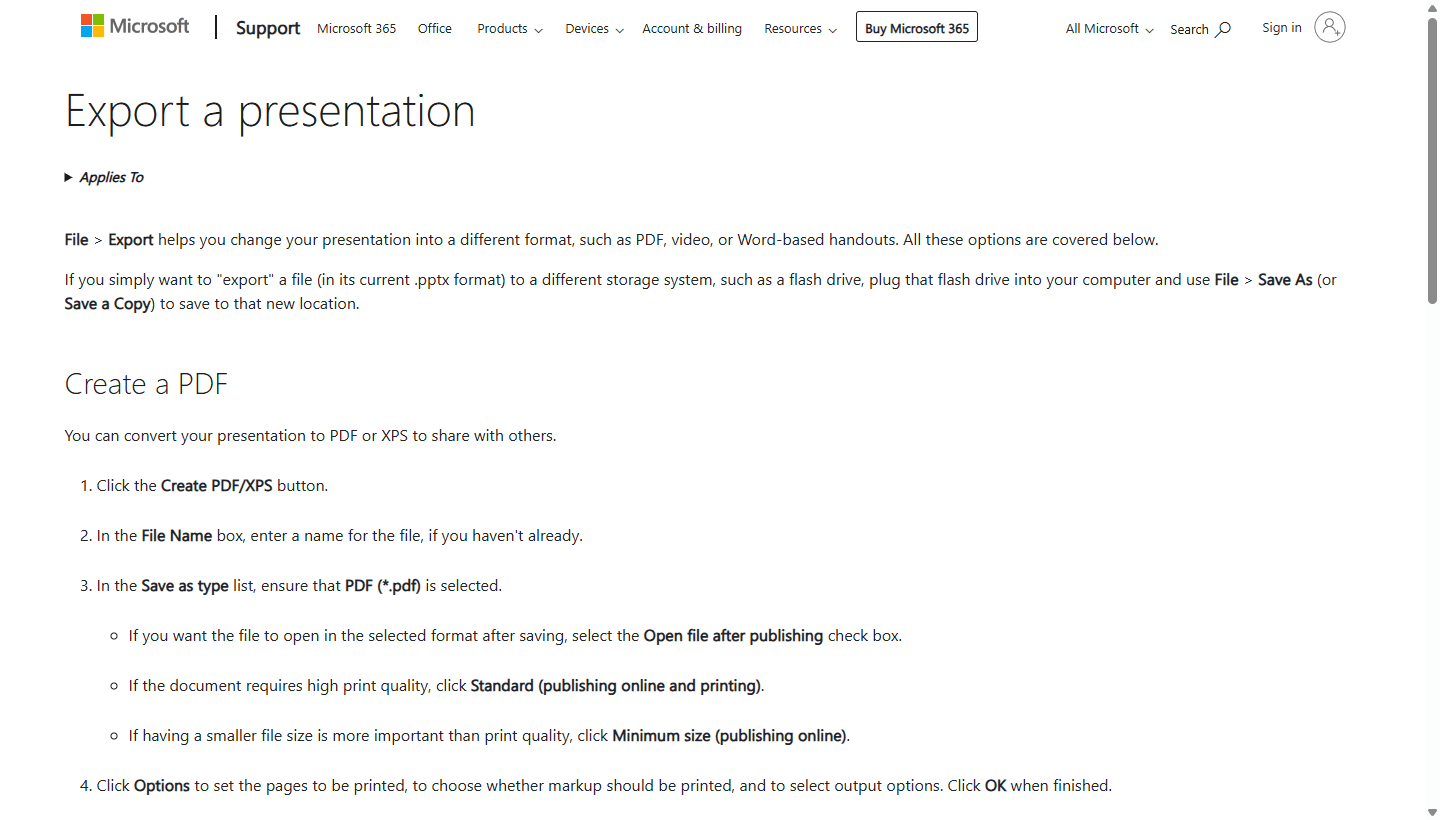
Microsoft's export documentation shows how broad PowerPoint's output model is: PDF, video, Word handouts, file types, and Microsoft 365 publishing. That is useful when a formal deck needs several delivery formats. Canva has broad visual outputs too, but the two products do not interpret every presentation feature in the same way.
For a high-stakes switch, keep three files during the transition: the original source, the editable migrated file, and a PDF reference. Test the editable version on the destination computer. If the event is important, disconnect the internet and test again. Confidence is cheaper before the audience arrives.
Canva to PowerPoint
Plan for a review of fonts, line breaks, image crops, charts, videos, transitions, animations, and speaker notes. A deck that opens is not necessarily a deck that is ready to present.
PowerPoint to Canva
Expect complex masters, embedded objects, charts, animations, custom fonts, and Office-specific behavior to need simplification or rebuilding.
Corporate template
Move the approved fonts, colors, logos, legal slides, title layouts, chart rules, and footer requirements before moving the rest of the deck.
Training
Canva training is mostly about template discipline and brand guardrails. PowerPoint training is more likely to cover masters, layouts, charts, Presenter View, file packaging, and delivery habits.
Safest handoff
Export the final PDF as a visual reference, keep the editable source, and test the working file on the exact computer and software version used for the event or client handoff.
Decision test
Run a 12-slide test that includes the annoying parts.
A fair test needs more than a title slide and three bullets. Build the same 12-slide deck in both products. Include a title, agenda, two-column explanation, chart, full-bleed image, comparison table, quote, video, section divider, process diagram, conclusion, and appendix.
Invite one teammate who is not a designer. Ask that person to change a number, replace an image, add a slide, leave a comment, and export the deck. Their success matters more than your comfort if they will maintain the presentation after launch.
Then present from another computer. Check the fonts, notes, media, transitions, click order, aspect ratio, and offline behavior. Send the editable file to someone who uses the format your clients expect. Ask what broke and how long it took to fix.
Score five things: time to first acceptable draft, time to final approved deck, number of post-export fixes, confidence during delivery, and ease of editing for the next owner. The winner may surprise you. Canva can lose its speed advantage during handoff. PowerPoint can lose its control advantage when nobody knows how to use the controls.
My default verdict is Canva for fast visual creation and PowerPoint for durable presentation delivery. Your 12-slide test should be allowed to disagree.
| Decision | Use this rule |
|---|---|
| Choose Canva if | You need a strong first draft fast, your editors are not presentation specialists, and the same campaign needs social, video, print, and slide assets. |
| Choose PowerPoint if | PPTX is the expected handoff, offline presenting matters, Office compatibility matters, or the deck needs deep control over notes, charts, animations, and delivery. |
| Use both if | Marketing creates visual campaign assets in Canva while presentation owners rebuild or maintain the final client-facing deck in PowerPoint. |
| Pause if | Nobody knows who will edit the file, where it will be presented, what format the recipient expects, or whether the deck must work without internet access. |
| Measure this | Time to first acceptable draft, number of post-export fixes, confidence on another machine, teammate editing success, and the number of times the work leaves the chosen tool to be finished elsewhere. |
FAQ
Common Canva vs PowerPoint questions
Is Canva better than PowerPoint?
Canva is better for fast, template-led presentation design and for reusing the same content across social, video, print, and other visual formats. PowerPoint is better for native PPTX handoff, offline delivery, detailed presentation controls, Office integration, and formal business or education workflows.
Is Canva or PowerPoint easier for beginners?
Canva is usually easier for a beginner starting from a blank page because its templates, stock assets, and drag-and-drop workflow reduce setup. PowerPoint may feel easier inside an organization where people already know the ribbon, use company templates, and exchange PPTX files every day.
Can Canva replace PowerPoint for business presentations?
Canva can replace PowerPoint for many internal decks, simple proposals, webinars, and brand-led presentations. It is a riskier replacement when clients expect editable PPTX files, the deck uses complex Office content, the event is offline, or another person must keep editing the file in PowerPoint.
Does PowerPoint have a free version?
Yes. Microsoft's official PowerPoint page lists a free web version for one person with sharing, real-time collaboration, basic templates and assets, dictation, and 5 GB of cloud storage. Paid Microsoft 365 plans add the desktop apps, more storage, and broader features.
What is the safest way to move from Canva to PowerPoint?
Export a working copy, keep a PDF as the visual reference, then inspect fonts, line breaks, image crops, charts, media, animations, and notes in PowerPoint. Test the deck on the exact computer used for delivery before deleting or archiving the Canva source.
Sources