SwitchMyTool

My working verdict
I choose Canva for the first impression and Google Slides for the fifth editor.
- I choose Canva when the deck needs a polished visual direction quickly and the same campaign will produce more than slides.
- I choose Google Slides when the file will live in Drive, several people will edit it, and comments or version history matter more than a large media library.
- I use both only when the visual benefit justifies the conversion review. Fonts, video, animation, and line breaks can turn a casual export into a rebuild.
- I do not let the prettiest first draft decide the purchase. I watch what happens during review, handoff, presenting, and the next revision.
My verdict
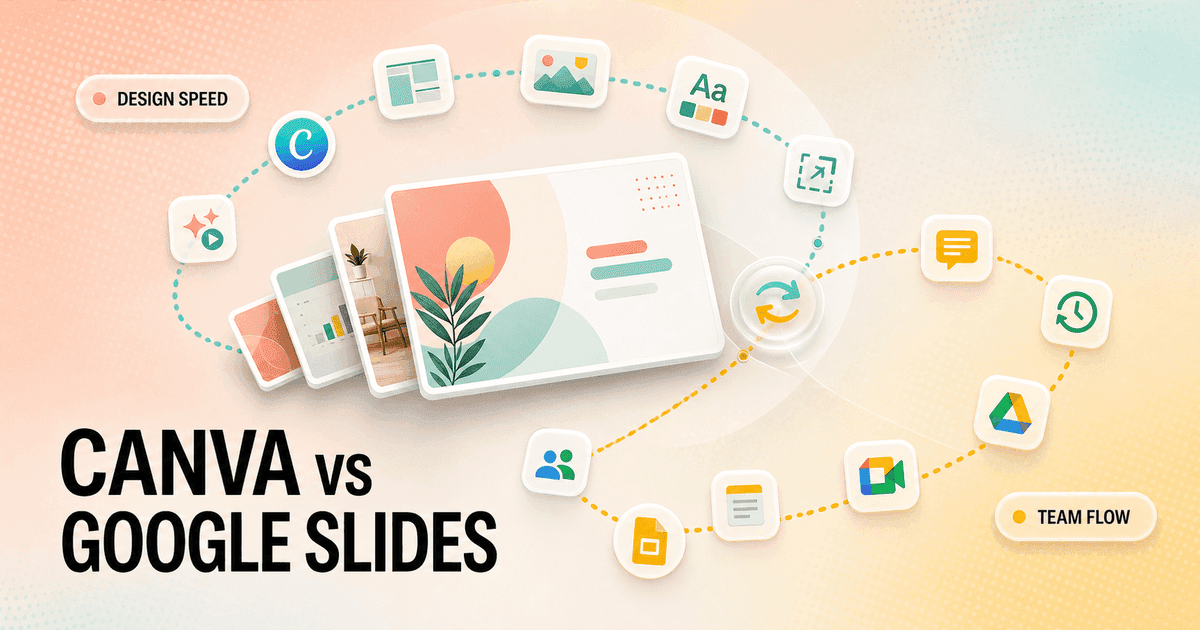
Canva vs Google Slides is a design-speed question until another person touches the file.
I can make an attractive presentation in either product. That is the least useful conclusion in this comparison. The real choice appears after the first draft, when a teammate rewrites the title, a manager leaves eleven comments, a client asks for the editable source, and somebody presents from a different computer.
Canva reduces the distance between a blank brief and a polished visual direction. I get templates, stock media, animation, brand assets, layout ideas, and a broader visual suite around the deck. When I need a webinar, social promotion, handout, and recap video to share one look, Canva feels like the natural home.
Google Slides reduces the distance between one person's file and a shared organizational document. I get Drive ownership, comments, live editing, sharing permissions, version history, familiar Google accounts, speaker notes, and Meet integration. When the deck will keep changing after I hand it over, that boring reliability is valuable.
My default answer is Canva for visual production and Google Slides for collaborative ownership. I switch the answer when the deck's life is mostly design or mostly revision. I use both when a client needs Canva's visual start and Slides' team workflow, but I budget for a real handoff instead of trusting conversion blindly.
| Job | My choice | Why I choose it | What I check |
|---|---|---|---|
| Fast visual first draft | Canva | I get more templates, media, visual starting points, and campaign-friendly formats before I touch the canvas. | I edit the template aggressively so the deck does not look borrowed. |
| Several people editing live | Google Slides | I trust the comments, granular sharing, version history, live pointers, and familiar Google account workflow. | I still assign one person to protect hierarchy and slide consistency. |
| Formal organization handoff | Google Slides | I can leave the deck in Drive where coworkers already expect to find, review, and revise it. | I confirm whether the client actually expects Slides, PPTX, PDF, or a Canva link. |
| Brand-led campaign deck | Canva | I can keep slides close to social, video, print, brand assets, and the rest of the campaign. | I count the cleanup if another team later needs a native Slides file. |
| Design in one tool, edit in another | Depends | I use Canva for visual exploration and Slides for the shared working file when the handoff justifies two sources. | I define which file owns the design before revisions begin. |
My Google Slides experience
Google Slides felt plain in exactly the way a shared working file should.
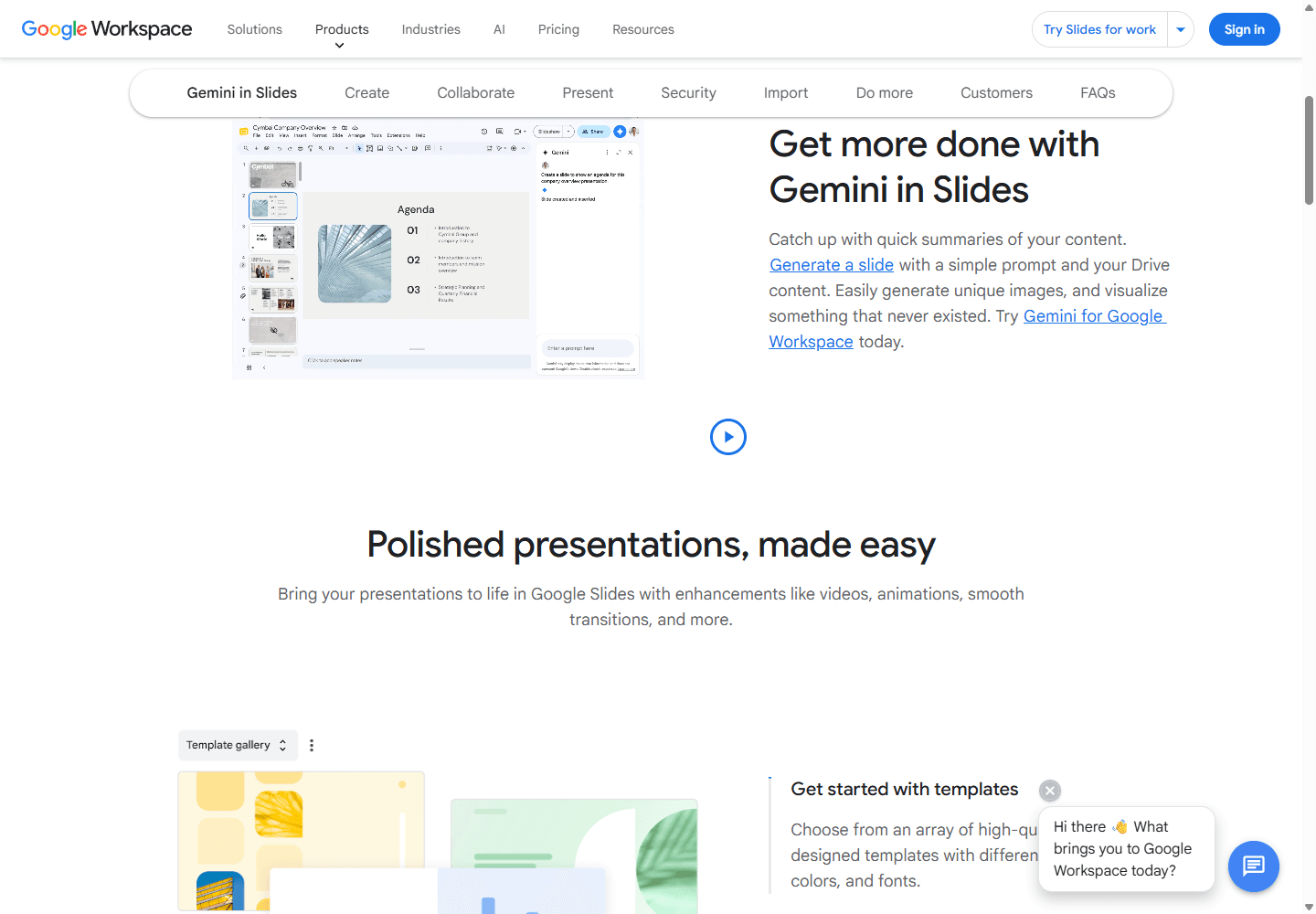
My first impression was speed without spectacle. A blank deck opened in the browser, the theme panel was already visible, and the main controls were legible. I could choose a layout, change the background, add transitions, write speaker notes, comment, share, or present without learning a new visual language.
The restraint is useful when the deck belongs to a process. I know where to look for the filmstrip, the current slide, the notes, the comments, and the sharing state. I can imagine handing the file to a coworker who uses Docs and Sheets every day and spending almost no time explaining the editor.
The weakness is also visible immediately. The built-in themes do not give me Canva's breadth of art direction, media, or campaign context. I can make an excellent deck in Slides, but the application expects more of the visual system to come from me, my organization, or an imported template.
I have learned not to confuse that plain start with a weak product. Slides earns its place after the first draft. Automatic saving, comments, revision history, Drive ownership, permissions, and live editing reduce the mess that usually appears when a deck moves through several people.
My Canva experience
Canva made the visual decision earlier and the handoff decision later.
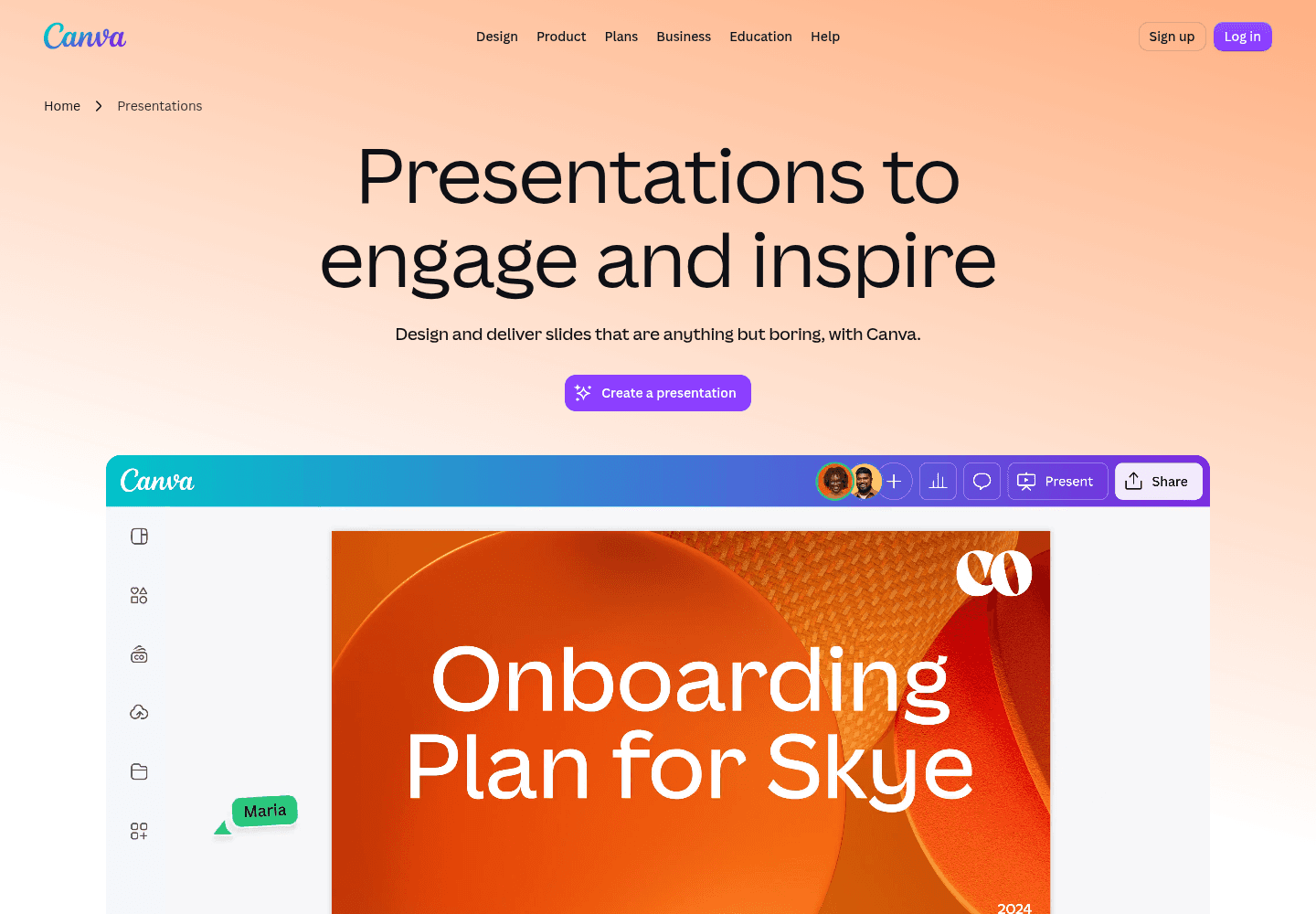
Canva is more generous before I know what the deck should look like. I can browse presentation templates, stock imagery, graphics, video, animation, and brand resources inside the same general workflow. That helps when the brief contains content but no art direction.
I move fastest when I treat a template as scaffolding. I delete decorative objects, simplify the type hierarchy, replace obvious stock, tighten the palette, and make the layout answer the story. If I merely change the words, the deck can look polished and strangely familiar.
Canva also makes sense when the presentation is one piece of a campaign. I can keep related social graphics, handouts, short videos, and visual assets nearby. Google Slides can hold a presentation beautifully, but it does not try to become the entire visual production system.
The tradeoff appears when the deck leaves Canva. A view link or finished PDF is easy. A fully editable Google Slides handoff is more fragile because fonts, media, animations, and layout behavior do not always translate perfectly. I decide the final owner before I spend hours polishing a Canva-only feature.
Design speed
Canva wins my first hour. Google Slides can win the next ten review rounds.
Canva's speed comes from reducing decisions. Templates suggest hierarchy. Media and graphics solve asset hunting. Brand tools constrain colors and type. Resizing and the wider visual suite make the deck useful beyond the presentation itself.
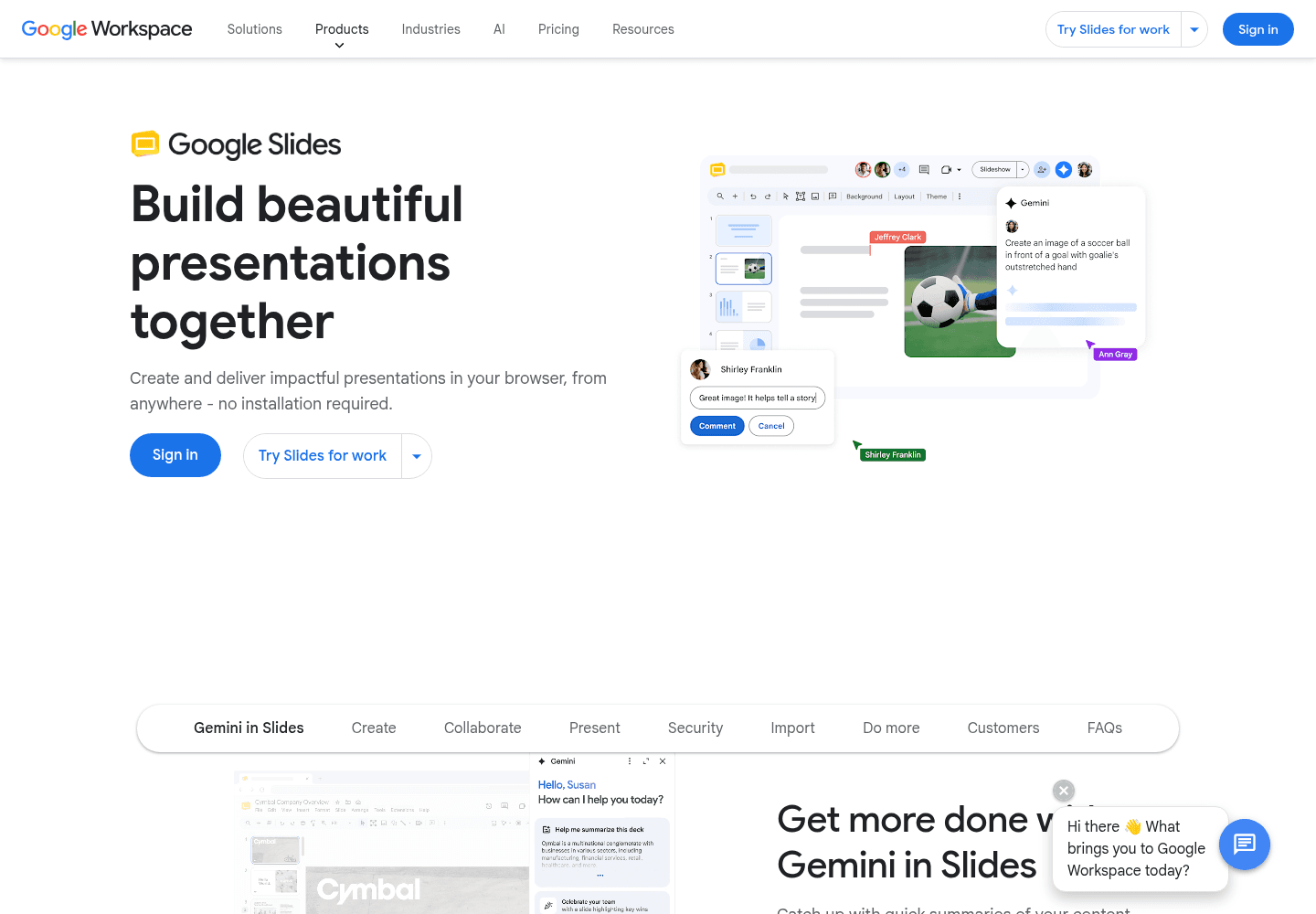
Google Slides can start quickly with templates, themes, GIFs, stickers, video, animation, and transitions. Google's current product page also promotes Gemini for summaries, slide generation, Drive-aware prompts, and image creation. I check plan eligibility before treating those AI features as part of the free baseline.
A practiced Slides user with a strong organization template can be faster than a Canva user browsing hundreds of options. That is the important caveat. Canva helps most when the visual system is missing. Slides becomes efficient when the system already exists and the task is updating content inside it.
I therefore separate time to first attractive slide from time to approved deck. Canva often wins the first metric. Slides can win the second when comments, copy changes, data updates, and stakeholder review happen in the same file.
| Workflow area | How I use Canva | How I use Google Slides |
|---|---|---|
| Blank-page pressure | I start near polished templates, media, brand assets, and presentation-specific ideas. | I start with a restrained slide canvas and a smaller built-in theme selection. |
| Layout control | I move quickly through drag-and-drop composition and broad visual formats. | I work with familiar slide layouts, backgrounds, themes, transitions, and object tools. |
| Team comments | I use browser sharing and comments inside a broad visual workspace. | I use comments, action items, granular permissions, live pointers, and version history inside Drive. |
| Presentation delivery | I favor visually rich decks, recording, audience features, and reuse across content formats. | I favor presenter view, speaker notes, captions, Meet controls, and an organization-friendly working file. |
| File handoff | I hand over a Canva link or finished export when the recipient does not need a Slides source. | I hand over the native Slides file when the next editor already works in Google Workspace. |
Collaboration
Google Slides is the calmer choice when the deck becomes a team document.
Google's current learning material says up to 100 people can work on a Docs, Sheets, or Slides file at the same time with view, edit, or comment permissions. I rarely need that many editors, thankfully. The useful point is that Slides was built around a shared document rather than an emailed attachment.
I rely on comments, permissions, live cursors, and version history to make ownership visible. If a manager changes a title or a designer adjusts a chart, I can see the working file evolve and restore an earlier version when a helpful edit becomes an expensive mistake.
Canva collaboration is strong when the shared object is a visual template or campaign. I can give a non-designer a branded starting point and let them change approved content in the browser. That is powerful for marketing enablement, nonprofit teams, community groups, and recurring social production.
My choice depends on what collaborators are changing. If they are adjusting layout, media, and brand assets, Canva feels natural. If they are rewriting content, reviewing data, assigning comments, and maintaining an organizational deck, Slides usually creates less friction.
Presenting
I trust both on stage, but I prepare for different failure modes.
Google Slides gives me presenter view, speaker notes, captions, a laser pointer, slide navigation, PDF or PPTX download, and tight Meet integration. Google's current documentation also explains how eligible Workspace users can control Slides inside Meet and add co-presenters.
I like that the notes area is part of the normal editing surface. It encourages me to separate what the audience reads from what I plan to say. Captions can help accessibility, although Google notes that caption accuracy depends on the audio and does not store the caption text.
Canva supports live presenting, recording, presenter notes, mobile control, audience interactions, and richer visual media. I prefer it when the performance and visual style are central to the experience, or when the presentation needs to become an asynchronous recording.
I still test the exact delivery setup. I open the deck on the presentation computer, check videos, fonts, notes, links, aspect ratio, and offline behavior, then keep a PDF fallback. A browser-based editor does not excuse me from rehearsing the boring parts.
Free plans
Both free options are useful, but they save different kinds of work.
Google states that anyone with a Google Account can create in Slides. That makes the core editor, sharing workflow, and Drive ownership a strong default for individuals, schools, clients, and small teams that already use Google accounts.
Some Slides features are premium. Google's current product page marks recording, speaker spotlight, domain templates, certain Meet experiences, and some Gemini capabilities as plan-dependent. I verify the live Workspace plan before promising one of those features to a team.
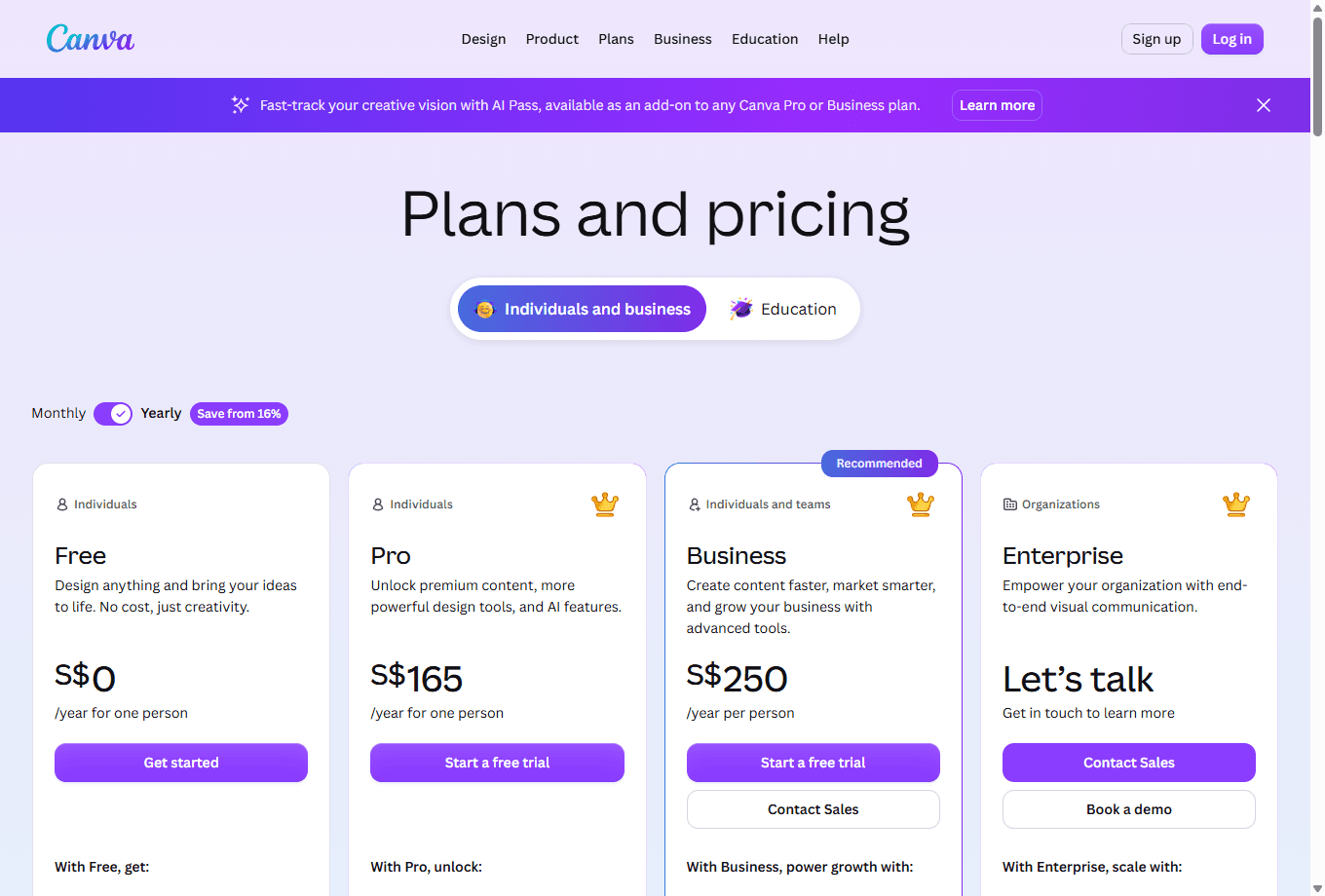
Canva Free gives me a meaningful presentation workflow with templates, editing, media, collaboration, and exports. The current US pricing page listed Canva Pro at US$144 per year for one person when I checked on July 10, 2026. Pricing and taxes can vary by market.
I do not compare the subscriptions as if they buy the same thing. Canva Pro buys a broader visual production system. Google Workspace buys business email, storage, administration, security, collaboration, Meet, and a suite of productivity applications in which Slides is one product.
| Cost area | How I price Canva | How I price Google Slides |
|---|---|---|
| Free starting point | I can use Canva Free for presentation creation, templates, common media, collaboration, and exports. | I can create Google Slides with a Google Account and use the core browser editor without buying Workspace. |
| Paid value | I pay for premium templates, media, brand tools, resizing, AI features, and broader visual production. | I pay for Google Workspace when the organization needs business email, administration, storage, security, Meet, and premium Slides features. |
| Premium boundary | I check the live Canva plan because price, tax, country, billing cycle, and included AI features can change. | I check the Workspace plan because recording, speaker spotlight, domain templates, and some Gemini features depend on plan eligibility. |
| Hidden cost | I count template cleanup, premium asset dependence, and conversion work when the deck moves elsewhere. | I count design time, asset sourcing, and the work needed to make a plain deck feel distinctive. |
Migration cost
Official import support is useful. I still plan for cleanup.
Google's current Slides page explicitly says I can import Canva presentations online. That is better than pretending the products live on separate islands. I still treat import as a conversion, not a guarantee that every object, font, animation, or video will behave identically.
The recent Reddit thread I found describes the practical failure mode: a team exported from Canva, uploaded the PPTX to Slides, then saw fonts shift and videos stop working. One post is not a benchmark, but it names the exact elements I already test during a handoff.
My safest process is to move one representative deck before committing the whole library. I choose a file with custom fonts, media, charts, transitions, notes, and several layouts. I import it, present it, download it again, and ask the next editor to make a realistic change.
I keep the original source and a PDF reference until the new file is approved. I also move the review process. A deck with comments in Canva and new edits in Slides has two sources of truth, which means it has no source of truth.
Simple text and images
I expect a workable import, then inspect fonts, crops, alignment, and line breaks slide by slide.
Custom fonts
I choose a Google-compatible fallback or rebuild the type system before teammates begin editing.
Video and animation
I test every media item and transition in the destination file. A deck that opens is not automatically ready to present.
Comments and ownership
I decide whether review continues in Canva or restarts in Slides. I do not split comments across two sources.
Visual reference
I keep a PDF beside the editable file so I can identify what moved during conversion.
Reddit complaints
The common complaints are really arguments about ownership.
I saw designers praise Canva for creating controlled templates that non-designers can update. The examples were concrete: social graphics, one-sheets, team presentations, nonprofit assets, sales enablement, and client-editable copy. That is not amateur work. It is a deliberate handoff model.
I also saw complaints that Canva templates are easy to recognize, that simple professional controls can be hidden or missing, and that a broad visual system can become clumsy for technical output. I separate those complaints from presentation work because print production and a team slide deck are different jobs.
Google Slides appeared in the discussions as the simpler or cheaper handoff for some organizations. One designer argued that a large sales-team asset project could have been managed more efficiently in Slides. Another preferred Canva because media, custom fonts, and brand components were easier. The split maps directly to workflow fit.
The strongest shared warning was that accessible software does not remove design ownership. A template lets another person edit. It does not guarantee hierarchy, readability, brand discipline, or a clean final presentation. I still assign an approver and define what may change.
Conversion can become a rebuild
I found a recent r/canva post from a team whose PPTX import into Slides changed fonts and broke video. I treat official import support as a starting point, not a promise of perfect fidelity.
Canva is useful for controlled templates
I repeatedly saw designers describe Canva as a way to let sales, marketing, nonprofit, or community teams change copy without requesting every small edit.
Google Slides can be the cheaper team template
I saw one experienced designer argue that a large editable asset library could have been handled more efficiently in Google Slides. I read that as a fit signal for organizations already living in Workspace.
Canva handles media and brand assets better for some teams
I saw users prefer Canva over Slides or PowerPoint because media handling, font uploads, and brand components reduced setup.
The tool does not replace design ownership
I saw the same warning across several threads: accessible software helps non-designers edit, but somebody still has to define hierarchy, brand rules, and the approval step.
Choose Canva
I choose Canva when the deck begins as a visual campaign.
I recommend Canva to people who have a message but no established presentation system. A solo marketer, creator, founder, teacher, or nonprofit team can start from a useful design direction and keep related campaign assets in the same visual workspace.
I also choose Canva when a designer needs to build a controlled template for non-designers. I create the hierarchy and brand treatment, then let the content owner update approved fields. The browser access and media library keep routine work away from a specialist queue.
I skip Canva as the final source when the organization expects the deck to live in Drive and pass through many Google Workspace users. I can still design there, but I count the rebuild or import review as part of the project.
I choose it for
Brand-led pitches, visual lessons, webinars, creator decks, campaign presentations, and work that needs social, video, or print versions beside the slides.
I recommend it to
Solo marketers, founders, creators, teachers, nonprofits, small businesses, and teams that need a good visual first draft without a presentation specialist.
I avoid it when
The editable source must live in Google Drive, several departments will revise it, or the deck depends on a Google Workspace review and approval process.
I test this first
I build a ten-slide deck, invite a non-designer, reuse two slides as campaign assets, and export the exact file the next team expects.
Choose Google Slides
I choose Google Slides when the deck belongs to the team after I leave.
I recommend Slides for internal reports, classes, sales updates, shared proposals, recurring meetings, and client decks that will keep changing. The native Drive file is easy to find, comment on, restore, and present without manufacturing another account workflow.
I particularly like Slides when the organization already has a domain template and a clear review process. At that point the smaller design library is not a weakness. The visual decisions are already made, and the job is to keep content accurate without breaking the system.
I skip Slides as my only creative environment when the brief needs a distinctive art direction and no designer has supplied one. I can build that direction manually, but Canva usually gives me more useful material sooner.
I choose it for
Internal decks, recurring reports, sales reviews, classes, shared proposals, and any presentation that will keep changing inside Google Workspace.
I recommend it to
Workspace-heavy companies, schools, distributed teams, agencies collaborating with clients, and anyone who values comments and version history over a large design library.
I avoid it when
The hardest part is creating a visually distinctive deck from nothing and nobody on the team wants to source or build the design system.
I test this first
I invite three editors, assign comments, restore an earlier version, present with notes, download a PPTX and PDF, and open both on another computer.
Use both
I use two tools only when I can name the owner of each file.
My cleanest two-tool workflow starts in Canva for visual exploration. I establish the type hierarchy, palette, image treatment, and a small set of repeatable layouts. Then I move a controlled version into Google Slides for comments, content updates, and long-term team ownership.
I do not continue editing both files casually. Canva owns the original visual system and campaign assets. Slides owns the shared presentation after handoff. If the design changes substantially, I update the system deliberately rather than letting two almost-identical decks drift apart.
For a recurring deck, I rebuild the important layouts as native Slides templates. That costs more on day one and saves conversion work every month. For a one-off presentation, an import plus cleanup may be cheaper.
The two-tool approach is not automatically sophisticated. Sometimes it is just twice the software and twice the confusion. I use it when Canva's visual advantage is large enough to pay for the migration review.
Decision test
I run a 45-minute handoff test before changing the team's default.
I build the same six-slide sample in both products: title, agenda, image-led statement, chart, comparison, and conclusion. I use one custom font, one video, one animation or transition, and speaker notes because easy slides hide conversion problems.
I invite a non-designer to replace an image, rewrite a title, comment on a chart, duplicate a slide, and present from another computer. I watch where they hesitate and what they accidentally change.
Then I move the Canva version into Slides. I compare it with a PDF reference and count every font, crop, media, animation, and alignment fix. I do not call conversion free merely because the menu item exists.
I score time to first acceptable draft, time to approved deck, number of handoff fixes, collaborator confidence, and time to the next revision. Canva usually wins visual acceleration. Google Slides usually wins durable team ownership. The test tells me which win matters more.
| My decision | My rule |
|---|---|
| I pick Canva | The deck is primarily a design deliverable, I need a polished first draft fast, and the same content will become several visual formats. |
| I pick Google Slides | The deck is primarily a shared working document, many people will edit it, and the organization already collaborates in Drive and Meet. |
| I use both | I create the visual direction in Canva, then rebuild or import a controlled version into Slides for ongoing team ownership. |
| I pause | Nobody knows who owns the source, what file the recipient expects, which fonts are approved, or where comments should live. |
| I measure | Time to first acceptable draft, number of conversion fixes, teammate editing success, presentation confidence, and the time required for the next revision. |
FAQ
Questions I hear about Canva vs Google Slides
Is Canva better than Google Slides?
I think Canva is better when design speed, templates, media, brand assets, and cross-format reuse matter most. I think Google Slides is better when comments, version history, live editing, Drive ownership, Meet, and a durable team handoff matter most.
Is Google Slides free compared with Canva?
I can create Google Slides with a Google Account, and I can use Canva Free for many presentation jobs. I check the paid plans only after identifying the missing workflow. Canva paid plans focus on premium visual production, while Workspace plans buy a broader business collaboration and administration suite.
Can I move a Canva presentation to Google Slides?
Yes. Google's current Slides page says it can import Canva presentations online. I still inspect fonts, line breaks, video, animation, image crops, and transitions after conversion because community reports show that complex decks can need cleanup.
Which is better for team collaboration?
I prefer Google Slides for a deck that will live through many review rounds inside Google Workspace. I prefer Canva when the collaboration centers on brand templates, media, and visual campaign production. I keep one source of truth either way.
Should I design in Canva and present in Google Slides?
I do that when Canva gives me a faster visual direction but the client or organization needs a Slides source. I budget time for conversion and treat the Slides file as a deliberate handoff, not an automatic copy of every Canva behavior.
Sources